
March 14, 2026
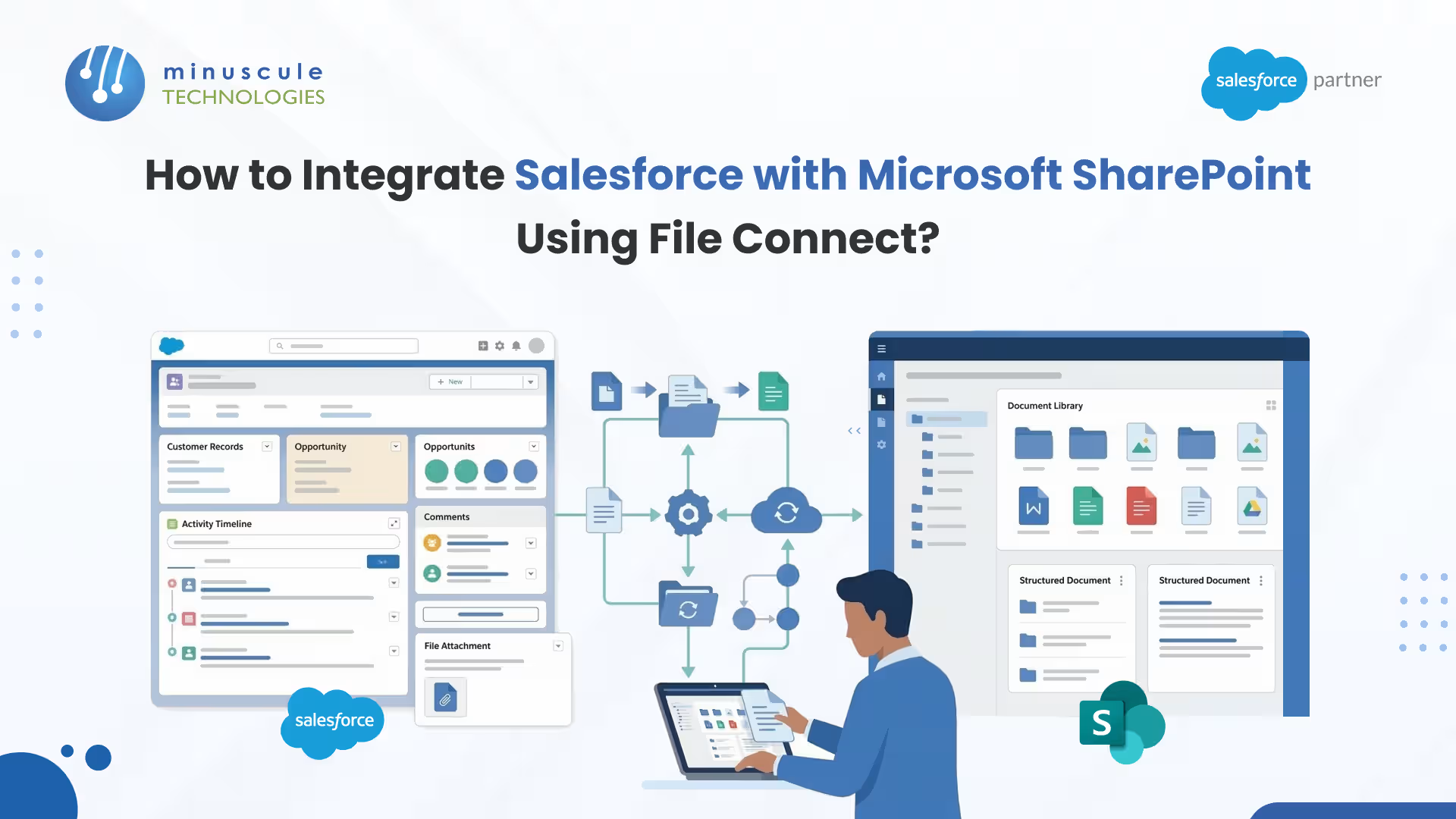
Imagine your Salesforce CRM is a high-speed engine, but heavy document storage is acting like a lead weight, slowing performance and inflating costs. For many, the "Storage Full" alert is a constant headache. While Salesforce is a premier platform for customer data, its native file storage is highly limited and costly. Meanwhile, Microsoft SharePoint is an enterprise-grade powerhouse offering massive capacity and robust document management.
By connecting these two via Files Connect, you aren't just clearing up a digital attic; you're bridging the gap between customer data and document collaboration. This integration creates a "single pane of glass" where your team can search, view, and edit SharePoint files without ever leaving their Salesforce record.
At Minuscule Technologies, Trusted Salesforce Engineering Partner, we specialize in architecting these seamless bridges. We help you navigate the technical maze of Azure API permissions and metadata mapping to ensure your "Files Connect" setup is secure and scalable.
Ready to stop paying for duplicate storage and start working smarter? Read our full integration guide below or let’s discuss a custom strategy for your business.
Salesforce Files Connect is the native, "point-and-click" solution provided by Salesforce to surface external documents without duplicating them. Here is why it remains the go-to for many enterprises:
Before touching any settings, consider these strategic pillars to ensure a smooth rollout:
To follow this guide, you will need System Administrator access to both Salesforce and your Microsoft Azure/Office 365 environment.
Log into the Azure Portal. Under App Registrations, create a new registration.
Go back to Salesforce Setup > External Data Sources.
No. Native Salesforce Files Connect is primarily an "inbound" tool designed for browsing, searching, and referencing existing SharePoint files within the Salesforce UI. If your workflow requires "outbound" automation—such as automatically moving a file uploaded in Salesforce over to a specific SharePoint folder—you will need a third-party AppExchange tool like's Files or a custom Apex/Microsoft Graph API integration.
This depends on your configuration. If you choose "Reference" mode (the most common for saving storage), users do need a SharePoint license and must authenticate with their Microsoft credentials to view or download the file. If you use "Copy" mode, a duplicate is created in Salesforce, allowing users without SharePoint access to see it, but this does not save on Salesforce storage costs.
A Correlation ID error typically points to a mismatch in the Redirect URI or insufficient permissions in the Azure App Registration. Ensure that the Callback URL generated in Salesforce matches the Redirect URI in Azure exactly (including the trailing slash). Also, verify that "Admin Consent" has been granted for the Files.Read.All and Sites. Read.All permissions in the Azure portal.
Yes, but with conditions. Salesforce Global Search can query the metadata (Title, Author, Custom Columns) of SharePoint files immediately. However, searching the content within a document (OCR) depends on whether SharePoint has finished indexing that file and whether the Salesforce External Object is configured to allow "Full Text Search."
Salesforce has shifted its primary support toward SharePoint Online (Office 365). While older versions of SharePoint On-Premise could be connected using a "Cloud Connector" or an OData producer, it is highly recommended to migrate to SharePoint Online to utilize the native v2.0 Graph API connectors, which offer better security and faster sync speeds.
Integrating SharePoint and Salesforce using Files Connect is the most effective way to eliminate silos and manage costs. However, the 23-page setup process and the complexities of Azure API permissions can be a significant hurdle for busy IT teams.
At Minuscule Technologies, we specialize in architecting these bridges. We don't just "connect" systems; we optimize your data flow to ensure your sales and support teams spend less time searching for files and more time delivering value. Whether you need a standard Files Connect setup or a highly automated custom integration, our years of experience ensure your document strategy is scalable, secure, and cost-effective.
Consult with Minuscule Technologies today. We will perform a free audit of your current file storage and help you build a SharePoint integration that fuels your business growth.
You've seen what's possible. Now, let's make it happen for your business. Whether you need an end-to-end Salesforce solution, a complex integration, or ongoing managed services, our team is ready to deliver.

Schedule a Free Strategic Call


Plot No. 4, Sridevi Amman Street, Perumal Nagar Extension, Old Pallavaram, Chennai, Tamil Nadu 600117, India.
