

April 2, 2026
Salesforce Outlook Integration connects Microsoft Outlook to your CRM so reps can view, log, and sync Salesforce records straight from their inbox. You turn it on in Setup → Outlook Integration and Sync, pick Einstein Activity Capture as the sync engine, then have your Microsoft 365 admin grant tenant consent. For an experienced admin, the Salesforce side takes under an hour.
The catch is that "just turn it on" hides three traps. The old Salesforce for Outlook plugin is gone. Exchange Online now needs an Admin Consent Flow that many IT teams miss. And the choice between Einstein Activity Capture and Salesforce Inbox shapes every rep's daily workflow.
This guide walks the full 2026 setup - picking the right method, the admin steps, the new Microsoft token rules, reporting, security, and a clean user rollout. It's written for the admin who's ready to build, not still deciding.
Already sure you want it? Keep reading. Still weighing the value? Our Salesforce integration team can pressure-test the fit first.
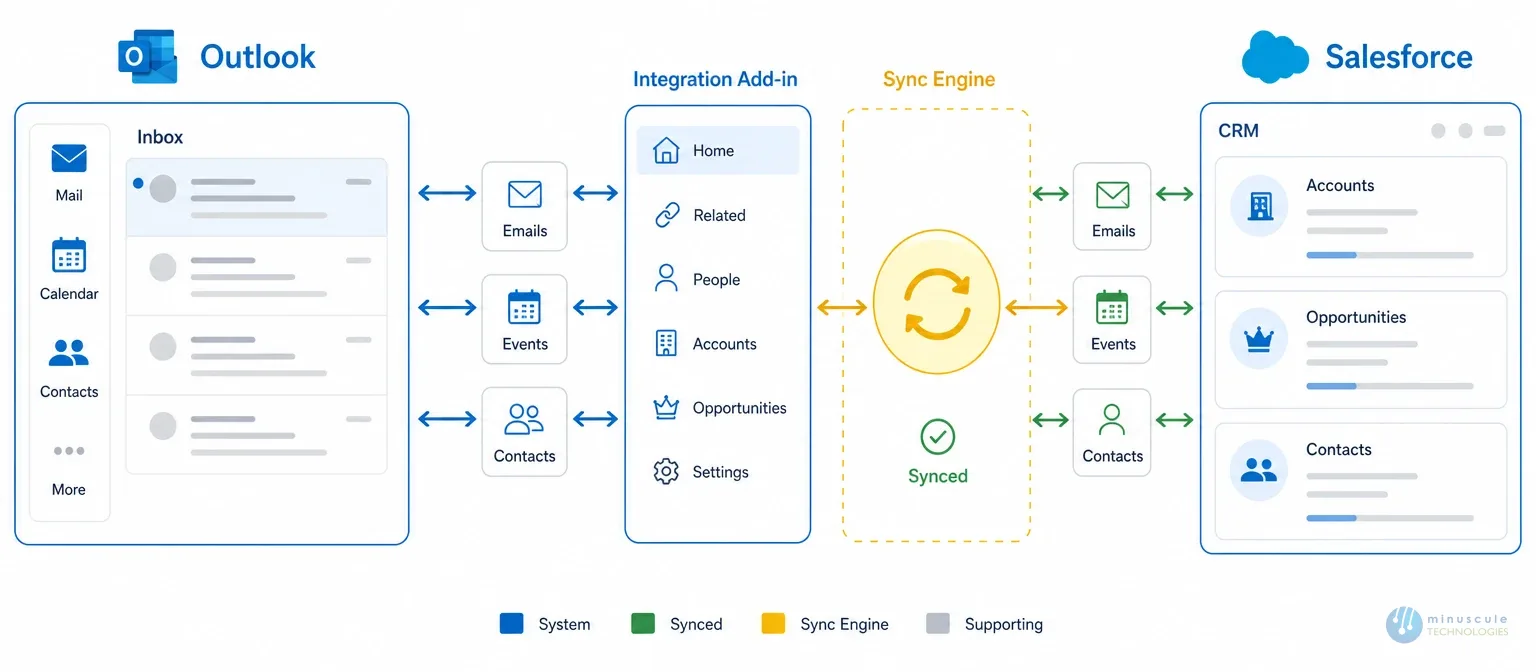
Salesforce Outlook Integration is a native link between Salesforce and Microsoft Outlook. It lets users see and update Salesforce records - contacts, leads, opportunities, and tasks - right inside their Outlook inbox or calendar, with no app-switching.
It runs through a Salesforce Outlook add-in installed in Outlook on desktop or web. Open an email, and a Salesforce panel appears beside it. The panel shows the matching contact, account, or opportunity, and lets the rep log the email, create a task, or edit a record in one click.
Behind the scenes, Einstein Activity Capture (EAC) handles the Salesforce Outlook sync - it captures emails and calendar events and ties them to the right records. A paid add-on, Salesforce Inbox, adds send scheduling, email tracking, and availability links on top.
In short: the add-in is the panel you see, and EAC is the engine that keeps Salesforce email integration flowing in the background.
Once the Salesforce Outlook connector is live, your team can:
The payoff is simple. Reps stop copying data between screens, and managers get a fuller activity picture in the CRM. That's the real reason Salesforce Outlook integration earns its spot in a sales stack.
Before you touch a setting, know which method you're actually configuring. This is where most orgs go wrong.
Salesforce for Outlook was the original tool: a Windows desktop app that synced contacts, calendar events, and emails between Outlook and Salesforce. Salesforce retired it in 2024.
If your org still runs the old Salesforce Outlook plugin, it gets no updates and no support. Any guide written before 2024 that treats it as current is out of date. The modern replacement is the Salesforce add-in for Outlook, powered by Einstein Activity Capture.
Einstein Activity Capture is the included engine behind the integration. It works in two layers:
EAC ships with Sales Cloud Enterprise Edition and above, and with Sales Cloud Unlimited. Three limits matter: EAC stores synced activity in Einstein's infrastructure, not standard Salesforce activity objects, so it doesn't show in standard reports by default. Synced activity has a retention window. And EAC needs Lightning Experience - it does not run in Salesforce Classic.
Salesforce Inbox is a paid add-on that sits on top of the base integration. It adds send tracking, availability links, Outlook-accessible email templates, and inbox views filtered by pipeline data. Inbox doesn't replace EAC - it runs on top of it.
| Capability | Salesforce for Outlook | Einstein Activity Capture | Salesforce Inbox |
|---|---|---|---|
| Status (2026) | Retired | Active — default | Active — paid add-on |
| Type | Desktop sync client | Add-in + background sync | Productivity layer on EAC |
| Cost | — | Included (Enterprise+) | Extra per-user license |
| Email logging | Manual + auto | Manual + auto | Same as EAC |
| Calendar sync | Yes | Yes (two-way) | Yes |
| Send later / tracking | No | No | Yes |
| Availability links | No | No | Yes |
| Data stored in | Salesforce objects | Einstein store (AWS) | Einstein store |
| Works in | Classic + Lightning | Lightning only | Lightning only |
Use the native integration (EAC) if you're on Sales Cloud Enterprise or Unlimited and your reps mainly need email logging and calendar sync. Add Salesforce Inbox if your account executives need send tracking, templates, or availability links. Look at a third-party tool or custom build only when neither covers a specific need - more on that below.
Pricing confuses buyers because the pieces bundle differently.
| Component | Included with | Extra cost? |
|---|---|---|
| Outlook Integration add-in | All Sales Cloud editions | No |
| Einstein Activity Capture | Sales Cloud Enterprise & Unlimited (select Performance) | No |
| Salesforce Inbox | — | Yes — per-user add-on |
So the base Salesforce Outlook integration is effectively free on the right edition. You only pay more for Inbox's engagement features. Confirm your edition and license count before you start, since EAC assignment depends on it.
Sales Cloud Enterprise Edition or above, Lightning Experience enabled, and a System Administrator profile.
Microsoft 365 with Exchange Online, access to the Microsoft 365 Admin Center at the tenant level, and these Graph API scopes available: Calendars.ReadWrite.Shared, Mail.ReadWrite.Shared, offline_access, openid, profile, User.Read, and email.
In 2024, Microsoft launched its Secure Future Initiative (SFI) and began deprecating legacy Exchange Online tokens. Your M365 admin must complete an Admin Consent Flow - granting the Salesforce app permission to use the required Graph API scopes at the tenant level.
Skip it, and users hit authentication errors. It's a one-time action by your M365 admin, not your Salesforce admin. Microsoft documents the steps in its grant admin consent guide, and Salesforce Ben has covered the change for admins.
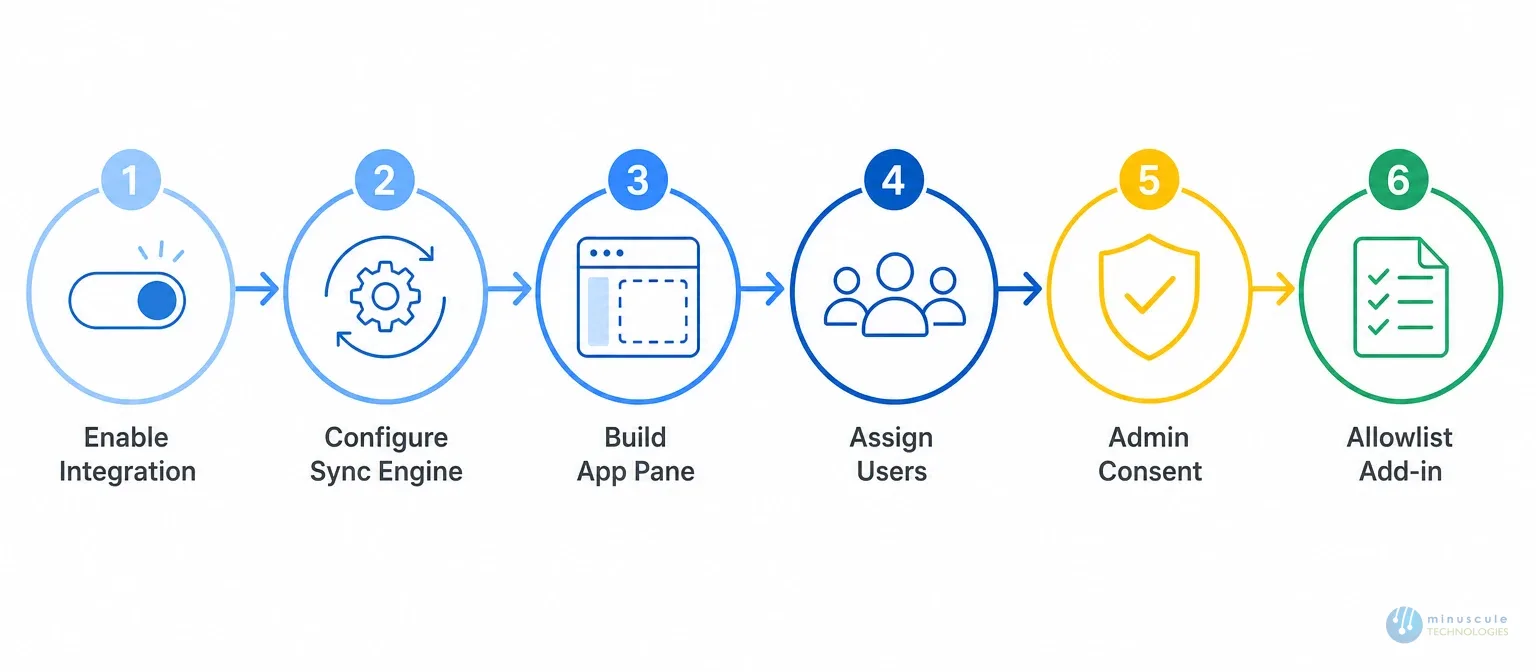
Your Microsoft 365 tenant admin does this step, not your Salesforce admin.
On Outlook Desktop: Open Outlook → Get Add-ins → search for Salesforce → Add → click the Salesforce icon → sign in with Salesforce credentials.
On Outlook Web App (OWA): Open an email → More actions → Get Add-ins → search for Salesforce → Add.
Connect in Salesforce: Profile icon → Settings → Connected Accounts → Connect Microsoft Account → sign in → grant consent. EAC sync starts within minutes.
Here's the surprise that trips up teams after go-live: EAC activity doesn't show in standard activity reports. It lives in Einstein's store, not the standard Task and Event objects.
To report on it, you have three paths:
Decide your reporting approach before rollout. Retrofitting it after reps rely on the data is harder than planning it up front - something our managed services team sees often.
Enterprise buyers ask one question competitors skip: where does the synced data actually live?
EAC stores captured emails and events in a Salesforce-managed store built on AWS - separate from your core org data. That has real governance effects:
Treat these as setup decisions, not afterthoughts. A quick governance review with your Salesforce administration lead keeps the integration audit-ready from day one.
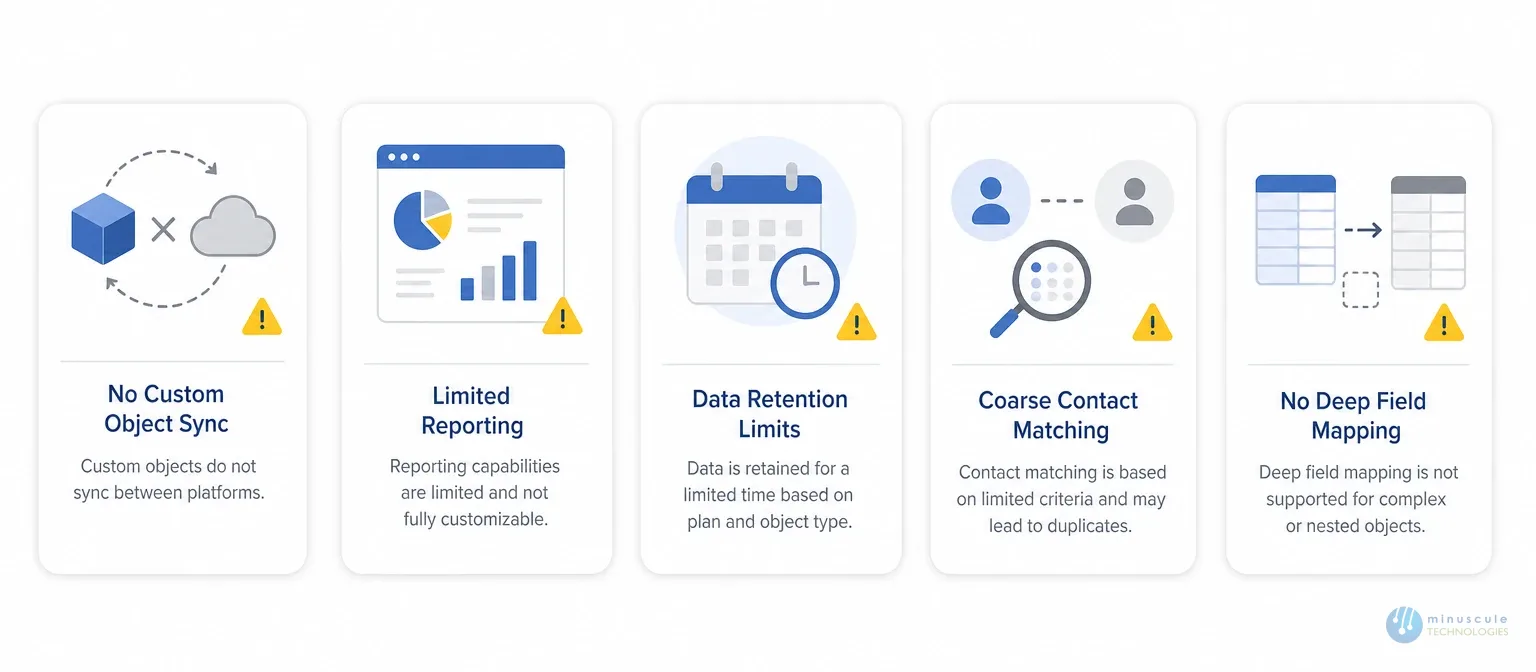
The native integration is solid, but it has real edges. Naming them honestly helps you plan around them:
When those limits block a real requirement, you have two options. Third-party tools like Cirrus Insight, Revenue Grid, or Ebsta add engagement and logging features. Or, when you need custom-object logging, strict residency, or reporting the native tool can't give, a custom integration built on the Graph API and Salesforce APIs removes the ceiling entirely. That engineering-led path - mapping the exact objects, retention, and governance your org needs - is where our Salesforce integration services come in.
Still on the retired Salesforce for Outlook desktop app? Here's the clean move to the modern add-in:
Historical activity is where migrations get messy. Planning the data handoff first - before you pull the old Salesforce Outlook plugin - protects years of logged history. Our data migration team handles exactly this handoff.
Cause: The add-in wasn't pushed from the M365 Admin Center. Fix: Deploy it centrally from M365 Admin Center → Exchange → Add-ins to all affected mailboxes.
Cause 1: Microsoft account not connected. Fix: User goes to Salesforce → Profile → Settings → Connected Accounts → Connect Microsoft Account.
Cause 2: Email domain is on the excluded list. Fix: Review and update excluded domains in EAC Settings.
Cause 3: No matching contact or lead. Fix: EAC matches on email address — relate the record manually in the Salesforce pane.
Cause: Calendar sync isn't enabled. Fix: In EAC Settings → Sync Settings, confirm Events sync is on for both directions.
Symptom: "Authorization failed" or "Token expired." Cause: The M365 Admin Consent Flow wasn't completed, or a conditional access policy is blocking the required Graph API scopes. Fix: Confirm admin consent was granted in Microsoft Entra, check the scopes aren't blocked, then have users disconnect and reconnect their Microsoft account. Apex Hours has walkthroughs if you get stuck.
No. Salesforce retired Salesforce for Outlook in 2024. The modern replacement is the Salesforce add-in for Outlook, powered by Einstein Activity Capture.
EAC is the sync engine that captures emails and calendar events and ties them to records. Salesforce Inbox is a paid add-on that adds engagement features - send tracking, availability links, and templates. EAC is included with Sales Cloud Enterprise and above; Inbox needs an extra license.
The base integration and EAC are included with Sales Cloud Enterprise Edition and above, so there's no separate charge. Only Salesforce Inbox costs extra. Confirm your edition before setup.
Your M365 tenant admin completes the Admin Consent Flow in Microsoft Entra, granting the Salesforce app access to the required Graph API scopes at the tenant level. It's a one-time action, and your Salesforce admin can't do it - it needs M365 tenant access.
Yes. EAC syncs calendar events two ways, so meetings created in Outlook appear in Salesforce and the reverse. Turn on Events sync in EAC Settings.
Yes. Salesforce offers a separate Salesforce for Gmail integration - a Chrome extension adds the Salesforce panel to Gmail, and EAC can sync Gmail and Google Calendar. This guide covers Outlook on Microsoft 365.
EAC stores activity in Einstein's store, not standard Activity objects. To report on it, use Einstein Activity Capture Analytics or build reports on the Activity Metric and Activity Metric Rollup objects.
Nine times out of ten it's the Admin Consent Flow or a conditional access policy blocking the Graph API scopes. Confirm consent in Microsoft Entra, then have the user reconnect their Microsoft account in Salesforce Settings.
The Salesforce side takes 30–45 minutes for an experienced admin. Coordinating the M365 Admin Consent Flow usually takes 1–3 business days. Full rollout can happen the same day once the pilot works.
EAC stops syncing when their Microsoft account is disconnected. Data already synced stays in Salesforce, but the retention window means older data may age out. Log critical email history before deactivating the user.
Setting up Salesforce Outlook integration is more than flipping a toggle. Getting the EAC configuration right, clearing the M365 Admin Consent Flow, mapping profiles, planning reporting, and testing sync across the org takes real expertise - and mistakes here hit every rep's daily workflow.
Minuscule Technologies has delivered Salesforce integration projects across 75+ implementations, with 160+ certified consultants. We handle the full setup - from audit to go-live - so your team starts logging emails and syncing calendars without the trial and error. When native limits get in the way, we engineer the custom path.
Talk to our integration team and get your Salesforce Outlook integration running in days, not weeks.
You've seen what's possible. Now, let's make it happen for your business. Whether you need an end-to-end Salesforce solution, a complex integration, or ongoing managed services, our team is ready to deliver.

Schedule a Free Strategic Call


