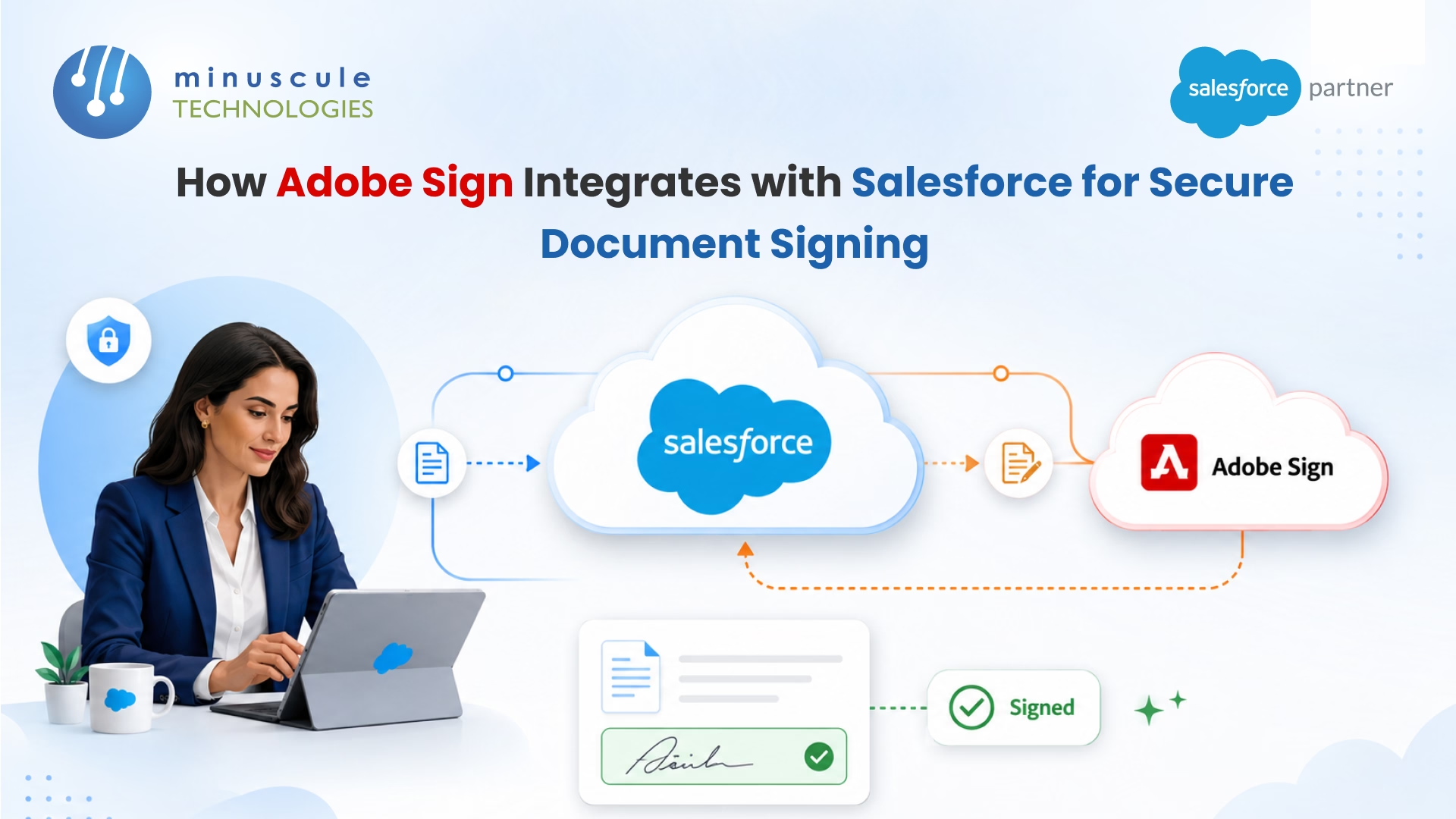
Adobe Sign integrates with Salesforce through a managed AppExchange package that lets teams send, sign, track, and archive legally binding electronic agreements without leaving the CRM. One click on an Opportunity, Account, or custom object pushes a contract to Adobe's signing cloud, captures the signature against a tamper-evident audit trail, and writes the executed PDF back to Salesforce automatically.
What you get out of the box:
- AppExchange package (now branded Adobe Acrobat Sign for Salesforce) with 4.9 stars across 3,200+ reviews
- Built-in compliance - ESIGN, UETA, eIDAS, FedRAMP Moderate, SOC 2 Type 2, HIPAA
- Native support for Sales Cloud, Service Cloud, CPQ, Experience Cloud, and custom objects
- Five-day contract cycles dropping to under five hours in production
1. What Adobe Sign for Salesforce Actually Does
The AppExchange package installs custom objects, Lightning components, and admin pages on top of your Salesforce org. Once connected to your Adobe Sign tenant via OAuth, any user can generate, route, and archive an agreement from a record.
The four jobs the package handles well:
- Agreement creation - generate a contract from any Salesforce record in two clicks
- Recipient routing - sequential, parallel, or hybrid signing flows across multiple parties
- Signature capture - typed, drawn, certificate-based, or KBA-authenticated
- Archival - signed PDF and audit certificate auto-attach to the originating record
What it doesn't replace is heavy document assembly. For long master service agreements that pull from twenty different fields, pair Adobe Sign with Salesforce CPQ's document generation or Conga Composer. Adobe's own Document Builder feature ships with the package and handles simpler templates without a third-party tool. If your team already uses Conga, here's how to install Conga Sign in Salesforce.
2. Adobe Sign vs DocuSign vs Native Salesforce eSignature
Three options come up in almost every enterprise evaluation. Each has a real fit:
- Adobe Acrobat Sign - best when your organization already pays for Adobe Document Cloud. Pricing typically lands slightly under DocuSign, and bundles with Creative Cloud or Document Cloud make it effectively free in many contracts.
- DocuSign for Salesforce - best when legal is standardized on DocuSign CLM and needs redlining, clause libraries, and post-signature obligation tracking.
- Salesforce native eSignature - best for teams signing fewer than 100 contracts a month with simple, low-risk workflows.
The shortcut we apply on Salesforce integration projects: if you're on Adobe Document Cloud, pick Adobe Sign; if legal owns DocuSign CLM, stay with DocuSign; if volume is low, pilot the native option first.
3. How the Integration Works End to End
The signing flow runs in six predictable steps:
- A user opens a Salesforce record (Opportunity, Account, custom object) and clicks "Send for Signature"
- The Adobe Sign component pulls contacts and document fields from the record
- The sender places signature, date, and text fields visually and clicks send
- Adobe Sign emails the signer a secure URL - no Adobe account, no app install
- Adobe captures IP address, time stamp, signer email, and device data into a tamper-evident audit log
- Once every signer is done, the executed PDF and audit trail push back to the originating Salesforce record
From there, a Flow or Process Builder rule can:
- Close the Opportunity and update the stage
- Fire provisioning workflows in your billing or fulfillment system
- Notify the team in Slack or Microsoft Teams
- Push the closed deal into ServiceNow for IT setup
- No rep manually updates Salesforce.
4. The Security and Compliance Layer
This is the part most blogs skim over and the part that matters most in regulated industries. The five things that make Adobe Sign legally binding and audit-ready:
- Cryptographic binding - every signature is sealed with a PKI digital certificate that visibly breaks if a single byte of the document changes after signing
- Audit trail - every event (view, sign, decline, delegate) gets time-stamped with IP address, signer email, and authentication method
- Signer authentication tiers - email-only for routine deals; KBA, phone, government ID, or PKI digital ID for high-value contracts
- Compliance certifications - SOC 2 Type 2, ISO 27001, PCI DSS, HIPAA BAA, FedRAMP Moderate, 21 CFR Part 11
- Data residency options - US, EU, Australia, Japan, and Canada hosting for GDPR or data-localization requirements
Adobe Sign also stacks on top of Salesforce Shield for additional encryption-at-rest and event monitoring. The Salesforce admin documentation covers the layered setup for regulated industries.
5. Installation and the Salesforce Data Model
A clean install on Sales Cloud Enterprise takes one to two days for the technical work, plus one to two weeks for templates, mappings, and admin training.
The seven-step install path:
- Install the package from AppExchange
- Authenticate against your Adobe Sign tenant via OAuth
- Enable callback URLs so Adobe Sign can push status updates back
- Build the first Agreement Template using a simple contract (NDA, order form)
- Map Salesforce fields into the template
- Test with a sandbox deal end to end
- Pilot with 5 users for 2 weeks before rolling out org-wide
The package installs five custom objects you need to understand on day one:
- Agreement - parent record, one per contract sent
- Recipient - child of Agreement, one row per signer with role and order
- Agreement Template - reusable contract definitions with default recipients and field placement
- Library Template - central content library for standard forms (NDA, MSA, order form)
- Mapping - the bridge between Salesforce fields and Adobe Sign form fields
The single most important schema decision is which Salesforce object owns the Agreement. For B2B SaaS the answer is usually Opportunity, for real estate it's a custom Property object, and for services firms it's Account. Settle this before installing - moving Agreements between parent objects after go-live is painful. The Salesforce Developer Blog covers Apex trigger and Flow patterns for extending the managed objects.
6. Five Automation Flows Worth Building
Treating Adobe Sign as a glorified send button is the most common mistake. The real return comes from automating the contract lifecycle end to end. Five flows that deliver value in the first quarter:
- CPQ Quote-to-Sign - auto-create the Agreement and attach the generated quote PDF the moment a CPQ Quote hits "Ready to Send"
- Renewal cycle - look at every Opportunity closing in 60 days, generate a renewal agreement, and queue it for review
- New-lead NDA - auto-fire a one-click NDA when a marketing-qualified Lead arrives from a specific campaign
- Multi-party signature route - sequence five-party real estate or construction deals in the right order with automatic reminders for slow signers
- Post-signature provisioning - trigger customer creation in billing, kick off onboarding emails, and notify the implementation team in Slack the moment the contract closes
Each of these flows works best when paired with the right Salesforce hygiene:
- Validation rules that block sending an Agreement with missing customer data
- Permission sets that limit who can send high-value contracts
- Schema-validation tests that catch field renames before they break templates
When these flows are wired into Salesforce DevOps automation, they hold up across upgrades and sandbox refreshes without quietly breaking. The Apex Hours community has working reference flows worth bookmarking for teams new to Flow Builder.
Frequently Asked Questions
1. Is Adobe Sign the same as Adobe Acrobat Sign?
Yes. Adobe rebranded Adobe Sign to Adobe Acrobat Sign in 2022. The AppExchange package is now listed as "Adobe Acrobat Sign for Salesforce" but the product, APIs, and integration patterns are identical.
2. How long does it take to integrate Adobe Sign with Salesforce?
Timeline by phase:
- Technical install - 1 to 2 days
- First Agreement Template and field mappings - 1 to 2 days
- Full rollout with templates, training, and pilot - 3 to 4 weeks
- Enterprise rollouts with complex CPQ flows or multi-region requirements - 6 to 10 weeks
3. Is Adobe Sign secure enough for legal contracts?
Yes. Adobe Sign meets the requirements of:
- The US ESIGN Act and UETA
- The EU eIDAS regulation
- Equivalent laws across 60+ countries
Each signature is cryptographically bound to the document with a PKI certificate and backed by a full audit trail capturing time stamp, IP address, signer authentication method, and device data.
4. Does Adobe Sign work with Salesforce CPQ?
Yes. The package integrates directly with Salesforce CPQ to push generated quotes into Agreement records. CPQ generates the quote PDF, a Flow attaches it to a new Agreement, and Adobe Sign sends it for signature - with the signed document flowing back to close the deal automatically.
Get Adobe Sign Live in Salesforce in Under 30 Days
Adobe Sign for Salesforce is a fast install but a thoughtful rollout. The teams that get it right do four things well:
- Pick the right starting templates (usually NDA and order form first)
- Lock the signing order at the template level
- Plan the data model around the right parent object
- Automate the full contract cycle from quote to provisioning
At Minuscule Technologies, we've delivered Adobe Sign and DocuSign rollouts for Nasdaq-listed enterprises across BFSI, real estate, and manufacturing - including multi-language document generation, CPQ-to-sign flows, and FedRAMP-compliant deployments. Our team brings 160+ Salesforce engineers and an integration-first approach that wires Adobe Sign cleanly into CPQ, Service Cloud, Experience Cloud, and custom objects.
Book a 30-minute consultation and we'll map your contract workflow, recommend the right templates and automation pattern, and ship a realistic timeline and cost. If you're also weighing other CRM-to-back-office connections, our breakdown of Salesforce SAP integration covers the ERP-side patterns, and the SalesforceBen blog is a good place to keep up with the latest e-signature configurations from working architects.