
October 12, 2026
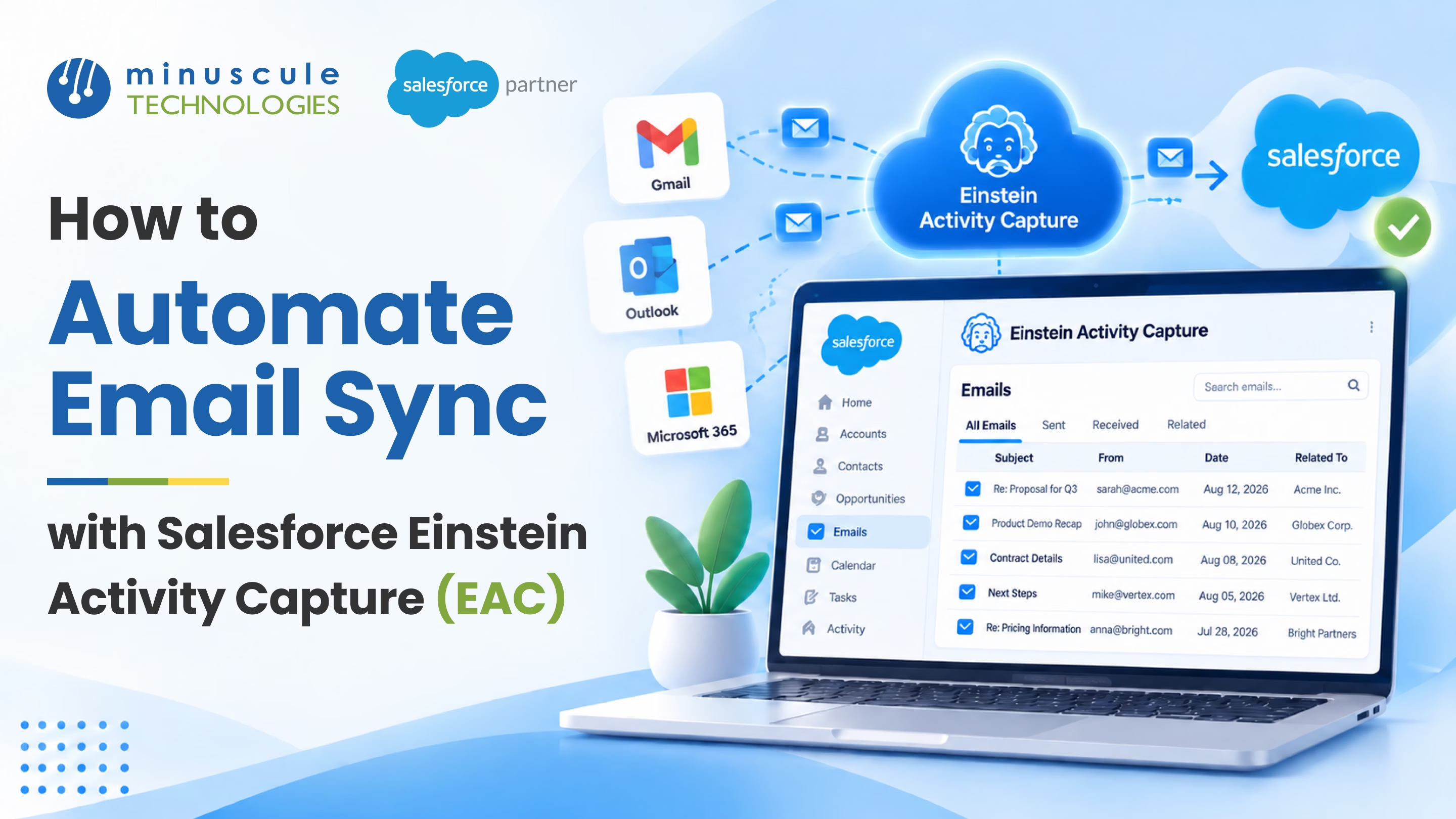
Salesforce Einstein Activity Capture (EAC) is a built-in tool that syncs your team's Gmail or Microsoft 365 email and calendar with Salesforce. It logs emails and meetings to the right contacts, leads, accounts, and opportunities on its own. Reps stop logging activity by hand, and everyone sees the same customer history. To set it up, you'll:
Picture a sales rep who sends dozens of emails and takes several meetings in a day. With EAC turned on, every one of those touchpoints lands in Salesforce before she opens her laptop the next morning. Her manager can see the full deal story, and she never clicks "Log Email" once. That's the promise of automated email sync in Salesforce.
This guide covers how Salesforce email sync works with EAC, what changed in 2026, and how to set it up step by step. It also shows how our team extends EAC for real customer rollouts. If you'd like expert help, our Salesforce integration services team can plan and run the rollout with you.
Einstein Activity Capture is Salesforce's tool for automatic activity logging. According to Salesforce's Einstein Activity Capture setup guide, EAC links emails and events to related Salesforce records once reps connect their email and calendar.
In plain terms, Salesforce EAC does three jobs:
This matters because manual logging rarely keeps up. Reps are busy, and it's easy to skip an email. When activity goes missing, managers lose sight of deals. New owners also start accounts from scratch. EAC fixes that with CRM email synchronization that runs in the background.
EAC isn't just for sales. Account managers, success teams, and anyone who emails customers can use it. The shared history shows every team what's been said and what comes next.
Salesforce says the basic version, EAC Standard, comes with Sales Cloud in Starter, Professional, Enterprise, Performance, and Unlimited editions. Paid add-ons, such as Sales Engagement and Revenue Intelligence, add more features. Check your org's licenses before you plan the rollout.
For a wider look at connecting inboxes to your CRM, see our guide to Salesforce email integration and the 360° email view.
EAC connects to your mail server through Microsoft or Google. It then reads email, calendar, and contact data and matches it to Salesforce records. Here's what happens to each type of data.
EAC looks at the To, From, and CC fields on each email. It then searches Salesforce for matching contacts, leads, and users. When it finds a match, the email appears on the record's activity timeline and on related accounts and opportunities.
With Sync Email as Salesforce Activity turned on, each synced email is stored as a standard Salesforce record. That means you can report on it and use it in flows, just like other activities.
Salesforce calendar sync turns meetings into Salesforce events. Admins can choose one-way or two-way event sync. Many teams start with one-way sync from the calendar to Salesforce, then expand once they trust the setup.
Salesforce contact sync keeps address book contacts and Salesforce contacts in step. Admins can limit which contacts sync, so personal contacts stay out of the CRM.
Salesforce provides a standard flow that links emails to users, accounts, contacts, leads, and opportunities. Salesforce Ben's Summer '25 EAC overview explains that you can customize this flow to fit your rules or match to more objects. If you activate your own version, the default flow stops running, so test changes in a sandbox first.
EAC has changed a lot over the past year. If you set it up a while ago, review these updates before your next rollout.
Sync Email as Salesforce Activity. Salesforce added this in Summer '25. Emails are now stored as normal Salesforce records instead of in a separate data store. You can report on email data and use it in flows. Synced emails also count toward your data storage, so plan how you'll archive them.
Older reports are retiring. Salesforce plans to retire Activity 360 Reporting, Activity Metrics, and the Activities Dashboard. It suggests moving to Sync Email as Salesforce Activity and standard reports. Check the latest release notes for the timing in your org.
Microsoft Graph replaces EWS. Microsoft is retiring Exchange Web Services (EWS) in October 2026. Salesforce's Microsoft Graph authentication guide for EAC compares the old and new ways to connect. New Microsoft 365 setups since Spring '26 use Microsoft Graph by default. Older setups need to upgrade to keep syncing.
Older sync tools are retiring. Salesforce's Lightning Sync retirement notice asks existing customers to move to Einstein Activity Capture. Salesforce for Outlook is also set to retire, so more teams are moving to EAC with the Outlook integration.
The takeaway: EAC is now Salesforce's main path for automated email sync. If you're still on an older tool, now is a good time to plan the move.
A little prep makes your Einstein Activity Capture setup much smoother. Work through this checklist before you turn anything on.
Teams that skip this prep often run into matching problems or storage surprises later. A short planning session now saves cleanup work down the road. If your data needs work first, our post on Salesforce data synchronization challenges covers common fixes.
Once your checklist is done, you can turn on automated email sync in Salesforce. Menu names can shift between releases, but the flow generally looks like this.
After the pilot, fix any matching or exclusion issues. Then add more users in waves. Watch storage and sync errors during the first few weeks.
EAC works best when it's paired with an inbox side panel. The two tools solve different problems.
The Salesforce Outlook integration adds a Salesforce panel inside Outlook. Reps can see contacts, accounts, and open deals for the person they're emailing. They can also update records without leaving the inbox. EAC then handles the background sync, so every email reaches Salesforce.
For Microsoft 365 teams, make sure your EAC connection uses Microsoft Graph. Our Salesforce Outlook integration guide walks through the panel setup. You can also read our guide to integrating Salesforce with Microsoft 365.
The Salesforce Gmail integration works the same way for Google Workspace teams. A side panel in Gmail shows Salesforce records and lets reps take quick actions. EAC syncs Gmail messages and Google Calendar events in the background.
Think of it this way. The side panel brings Salesforce into the inbox, so reps have context while they write. EAC brings the inbox into Salesforce, so the whole team sees the history. Together, they give you Salesforce inbox integration without extra clicks. Reps stay in the tool they like, and the CRM stays current. It's one of the simplest Salesforce productivity tools to roll out.
Many teams still rely on reps to log emails by hand. Here's how that compares with automated activity capture.
For most teams, automated activity capture wins on coverage and rep time. Manual logging still has a place for emails EAC can't match, such as messages from new contacts. Many teams use both: EAC for the bulk, and manual logging for the edge cases.
There's also a data quality benefit. With manual logging, each rep decides what's worth saving, so records look different from rep to rep. Automated capture applies the same rules to everyone. That makes your activity reports easier to trust and compare across teams.
EAC handles the core sync well. But in real projects, our team often finds a few gaps once emails start flowing. Here's how we close them for the businesses we work with.
We set up Einstein Activity Capture so both inbound and outbound emails reach Salesforce. That includes connection, exclusions, sharing, and storage planning. The result is a complete communication history on every customer record, with no manual logging.
EAC's standard matching works from email addresses. That's not always enough when a contact works on several deals. Our matching logic looks at the full conversation and links each email to the correct Contact, Account, or Opportunity. A pricing reply lands on the right deal, not just on the person.
Some captured emails won't match any record. Instead of leaving them hidden, we place them in a dedicated tab. Users can review the list and link each email to the right Account, Contact, or Opportunity in a few clicks.
EAC links emails to records that already exist. It doesn't create a lead when a new buyer writes in. Our Email-to-Lead solution fills that gap. It turns new customer emails into Salesforce leads on its own, so no inquiry waits in someone's inbox.
Once emails are captured, our 360° email view gathers them in one place. Users can see every customer email across Contacts, Accounts, and Opportunities, so the whole relationship is easy to follow.
Captured emails often mean someone owes a reply. Our follow-up feature lets users track next steps and set reminders from each interaction. Reps stay on top of promises, and managers see what's still open.
Turning on EAC is the start. These habits keep your activity data accurate and useful over time.
Salesforce Einstein Activity Capture syncs email and calendar data from Microsoft 365 or Google with Salesforce. It logs emails and events to the right contacts, leads, accounts, and deals on its own. Your customer history stays complete without manual logging.
EAC Standard comes with Sales Cloud in Starter, Professional, Enterprise, Performance, and Unlimited editions, according to Salesforce. Some extra features need paid add-ons, like Sales Engagement or Revenue Intelligence. Check your license to see what's included.
In Setup, search for Einstein Activity Capture and open Settings. Turn it on, create a configuration for Microsoft 365 or Google, and assign users. Users then connect their email accounts to start syncing.
Salesforce says it can take up to 24 hours for emails and events to first appear after a user connects. After that, new activity keeps syncing in the background.
Yes. EAC works with Microsoft 365 and Google Workspace. Pair it with the Salesforce Outlook integration or Gmail integration so reps can see Salesforce records inside their inbox.
Yes, when Sync Email as Salesforce Activity is on. Emails are then stored as standard Salesforce records, so you can use them in reports and flows. Keep in mind that these records count toward your data storage.
Salesforce Einstein Activity Capture turns everyday emails and meetings into a full customer history. With the right setup and a few smart extensions, reps spend more time selling. Managers see every deal clearly, and nobody logs emails by hand.
Minuscule Technologies has built on Salesforce since 2014. Our team has 125+ certified Salesforce experts and 75+ projects worldwide. Our Field Visit Accelerator adds visit tracking for teams that meet customers in person. A single visit can link to several Accounts, Contacts, and Opportunities, right next to the emails EAC captures. Industry Starter Packs also give your team a ready-made base for sales and service.
Ready to automate your email sync? Book an Einstein Activity Capture readiness review with our team. We'll check your licenses, storage, and email setup. Then we'll map a clear rollout plan.
You've seen what's possible. Now, let's make it happen for your business. Whether you need an end-to-end Salesforce solution, a complex integration, or ongoing managed services, our team is ready to deliver.

Schedule a Free Strategic Call


Plot No. 4, Sridevi Amman Street, Perumal Nagar Extension, Old Pallavaram, Chennai, Tamil Nadu 600117, India.
