
October 12, 2026
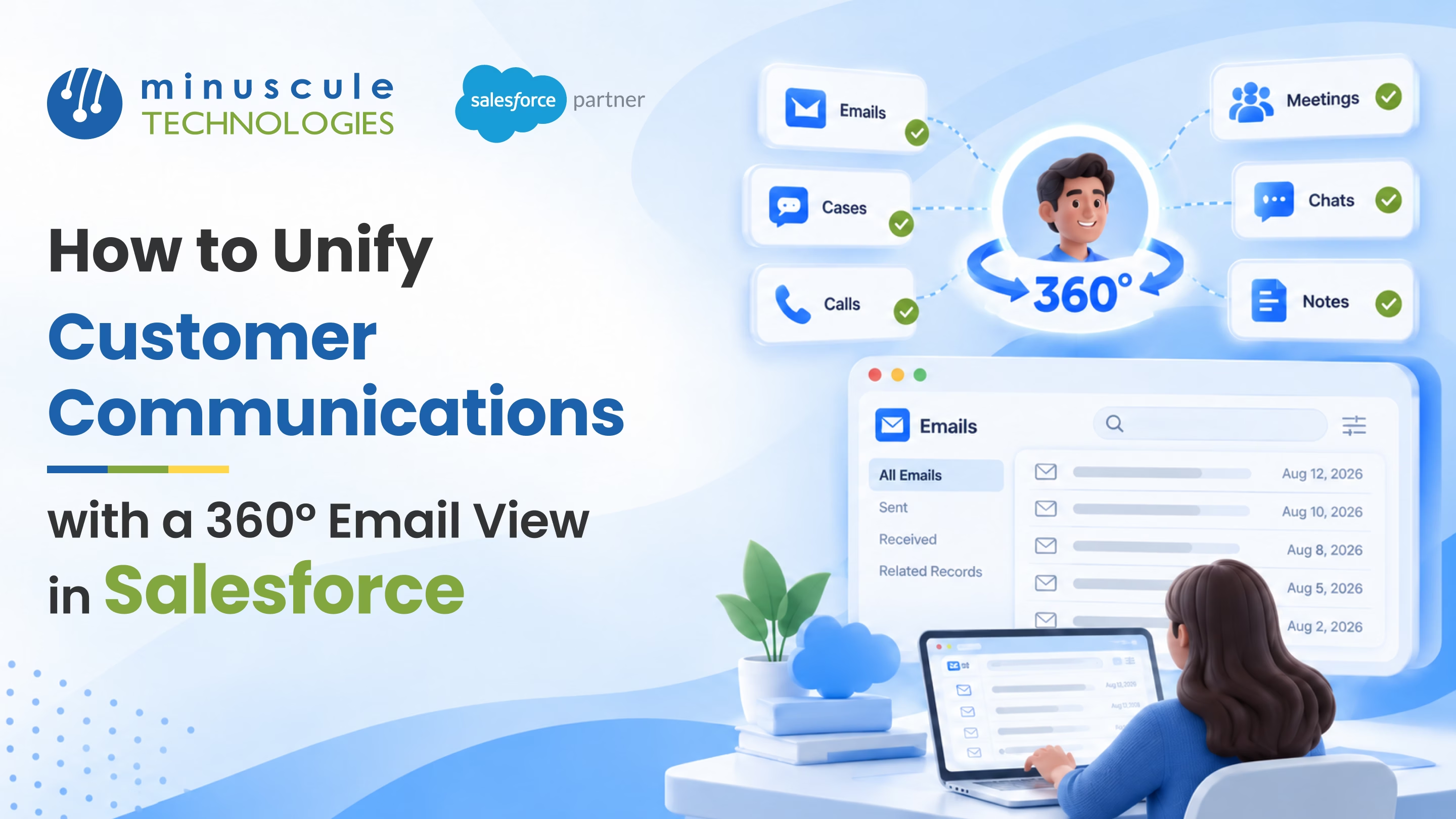
Salesforce email integration connects your team's inboxes, such as Gmail or Outlook, to Salesforce. Every customer email is saved to the right record. The result is a 360° email view. Anyone who opens a contact, account, or deal can see the full email history in one place. You can build it with a few Salesforce tools working together:
Picture an account manager taking over a new territory on Monday morning. She opens her top account in Salesforce. She sees every email the last rep sent, every customer reply, and last week's support thread. By her first call, she's already up to speed. That's what unified customer communications look like when email and CRM work as one.
This guide explains how a Salesforce 360 email view works and which tools build it. It also walks through a solution our team built, from Email-to-Lead to follow-up tracking. If you'd like a partner to plan the setup with you, our Salesforce integration services team can help.
Salesforce email integration links your email and calendar apps to Salesforce. Reps see Salesforce data next to their emails. Emails also show up on the right Salesforce records. Salesforce's Trailhead module on email and calendar integration tools says you can mix and match these tools to fit your needs.
Most teams use it in two directions:
This is what makes email integration with Salesforce more than sending email. Sending from Salesforce only covers messages that start in the CRM. A true integration also captures the replies and side threads that happen in the inbox every day.
There are a few common ways to connect email:
Many teams start with native tools. Salesforce builds them, they follow its security rules, and they work with reports and automation. For a Microsoft-specific walkthrough, see our Salesforce Outlook integration guide.
A Salesforce 360 email view brings every email with a customer onto one screen. It's the email part of a wider unified customer view. Deals, cases, and activity all live there too.
Here's what a well-built view gives each team:
The key is that the view sits on the record, not in one person's inbox. When a rep goes on vacation or changes roles, the conversation stays with the account. New team members can pick up where the last person left off.
This also supports Salesforce Customer 360. That's Salesforce's idea of one shared view of each customer across sales, service, and marketing. Email often holds the richest record of a customer relationship. When it sits in Salesforce, every team can use it.
A 360 email view also helps with omnichannel customer communication. Email can sit alongside calls, chat, and messaging on the same timeline. That gives you one record of how and when you spoke with each customer.
To see how a connected view works in a regulated industry, read our post on building a 360° customer view in banking.
Salesforce gives you several tools, and most teams use more than one. The table shows what each one does and when it fits.
A common setup pairs the Outlook or Gmail integration with Einstein Activity Capture. The side panel brings Salesforce into the inbox. Activity Capture brings the inbox into Salesforce. Service teams add Email-to-Case on top.
If you still use the older Salesforce for Outlook plug-in, plan your move now. Salesforce's Salesforce for Outlook retirement notice says the product will retire on January 30, 2027. Salesforce suggests moving to Einstein Activity Capture with the Outlook integration.
Microsoft 365 teams can also read our guide to integrating Salesforce with Microsoft 365.
Einstein Activity Capture (EAC) is the main tool for Salesforce email synchronization. According to Salesforce's Einstein Activity Capture documentation, it syncs your Microsoft or Google account with Salesforce. It links emails and meetings to the related contacts, leads, and opportunities.
Here's how it works day to day:
The biggest recent change is a feature called Sync Email as Salesforce Activity. Salesforce introduced it in Summer '25. With it, captured emails are stored as standard Salesforce records. You can use them in reports, flows, and other automation.
Salesforce Ben's guide to Einstein Activity Capture notes that, as of Spring '26, this setting turns on for new EAC setups. It also turns on for existing orgs that don't already sync email. Each synced email then becomes an Email Message or Task record, and that data counts toward your Salesforce storage. Check your storage before a wide rollout, and plan how you'll archive old emails.
EAC is a strong base for email data synchronization, but it's not the only piece. It focuses on capturing activity. Your team still needs the side panel, clear sharing rules, and good reports to put that history to work.
Native tools give you a strong start. But many teams need more control over how emails become leads and which records they land on. Our team built a Salesforce 360 email view solution that adds these pieces on top of the standard tools.
Salesforce offers Web-to-Lead for website forms, but it has no standard Email-to-Lead feature. Many new buyers simply send an email instead. Our Email-to-Lead solution reads incoming emails sent to a sales address and turns them into Salesforce leads on its own. Reps no longer copy names and details from the inbox, and new inquiries reach the right person faster.
We use Einstein Activity Capture to sync both inbound and outbound emails. Every reply, forward, and follow-up becomes part of the customer email history in Salesforce. Reps don't have to log anything by hand.
An email only helps if it lands on the right record. Our matching logic links each ongoing conversation to the right Contact, Account, or Opportunity. It checks details like the sender, the people on the thread, and open deals. So a reply about a renewal shows up on that renewal, not just on the contact.
Some emails can't be matched on their own, such as a message from a new person at a known company. Instead of losing them, our solution places these emails in a dedicated Unmatched Emails tab. Users review the list and link each email to the right Account, Contact, or Opportunity in a few clicks. Nothing important slips through the cracks.
Email is a big part of the customer story, but it's not all of it. Our solution adds a few more pieces, so teams see the whole relationship in one place.
Our 360° email view pulls every email into one place. You can see it on Contacts, Accounts, and Opportunities. A manager can open an Account and read every email with every person at that company, in order. There's no need to open each record.
Field and account teams often meet several people in one visit. With Customer Visit Tracking, users log a visit once and link it to many Accounts, Contacts, and Opportunities. The visit then shows up on the timeline next to emails. That way, meetings and emails tell one story.
The standard Salesforce Account Hierarchy shows parent and child accounts. We extended it to also show the Contacts under each Account. Teams can see who they know across a whole group of companies on one screen. That makes it easier to plan outreach and spot missing contacts.
Customer emails and visits often lead to next steps. With Follow-Up Management, users track each follow-up and set reminders from any email or visit. Reps see what's due, and managers see what's late. Customers get the replies they were promised.
Email tracking in Salesforce looks a little different for each team. The goal is the same, though: make every customer conversation visible and useful.
Sales teams want to know what happened with each prospect and what to do next. With email integration, a rep can open an opportunity and see the full thread before a call.
Useful sales email tracking features include:
Pair these with Salesforce email automation, such as follow-up tasks or flows triggered by key emails. Reps then spend less time on admin and more time selling.
Service teams often work from a shared address, such as support@yourcompany.com. Email-to-Case turns each message to that address into a Salesforce case. Agents reply from Salesforce, and the whole thread stays on the case.
This gives you the benefits of a Salesforce shared inbox. You get clear ownership, routing to the right queue, and a full history for every customer issue. When sales emails also sync to the account, agents can see the bigger picture before they reply.
For more on service setups, see our Service Cloud implementation services.
A good rollout keeps things simple at first and grows over time. Follow these steps to build your unified customer view.
Most teams can launch the basics in a few weeks. The data cleanup and sharing decisions usually take the most time, so start those early.
Once your email integration is live, a few habits keep the data clean and useful.
Good CRM communication management also depends on clean data across systems. Our post on Salesforce Data Cloud and the customer 360° view shows how unified data supports these goals.
Salesforce email integration connects email apps such as Gmail and Outlook to Salesforce. Reps see Salesforce records in their inbox, and customer emails save to the right records. Every team gets a shared view of customer conversations.
Yes. The Gmail integration adds a Salesforce side panel to Gmail in the Chrome browser. Reps can view records, log emails, and create records without leaving Gmail. Einstein Activity Capture can also sync Gmail messages to Salesforce automatically.
Yes. Salesforce plans to retire Salesforce for Outlook on January 30, 2027. That date comes from its retirement notice, updated October 1, 2026. Salesforce suggests moving to Einstein Activity Capture with the Outlook integration.
A Salesforce 360 email view shows every email with a customer on their Salesforce record. Sales, service, and account teams all see the same email history. It's one part of a wider unified customer view.
With Sync Email as Salesforce Activity turned on, synced emails are stored as Salesforce records. Those records count toward your org's data storage. Plan an archive process if your teams send a lot of email.
Salesforce doesn't include a standard Email-to-Lead feature. Web-to-Lead covers website forms, and Email-to-Case covers support emails. To turn incoming sales emails into leads, you need a custom solution or an AppExchange app, like the Email-to-Lead solution our team built.
Start with the Outlook or Gmail integration. Then turn on Einstein Activity Capture to sync emails on their own. An admin sets up the features in Salesforce Setup, and each user connects their email account. For support inboxes, set up Email-to-Case.
A Salesforce 360 email view gives every team the same story about each customer. Reps prepare faster, and agents answer with context. Leaders see how each relationship is going. Add Email-to-Lead, smart matching, visit tracking, and follow-ups, and every customer touchpoint has a home.
Minuscule Technologies has built on Salesforce since 2014. Our team has 125+ certified Salesforce experts and 75+ projects worldwide. Our WhatsApp Salesforce Accelerator adds messaging to the same customer timeline as your emails. Industry Starter Packs also give your team a ready-made base for sales and service.
Ready to give your team a full view of every customer conversation? Book a Salesforce email integration assessment with our team. We'll review your email setup, check your storage and sharing needs, and map out your rollout.
You've seen what's possible. Now, let's make it happen for your business. Whether you need an end-to-end Salesforce solution, a complex integration, or ongoing managed services, our team is ready to deliver.

Schedule a Free Strategic Call


Plot No. 4, Sridevi Amman Street, Perumal Nagar Extension, Old Pallavaram, Chennai, Tamil Nadu 600117, India.
