We are at Dreamforce 2026, Industry Pavilion at San Francisco


May 12, 2026
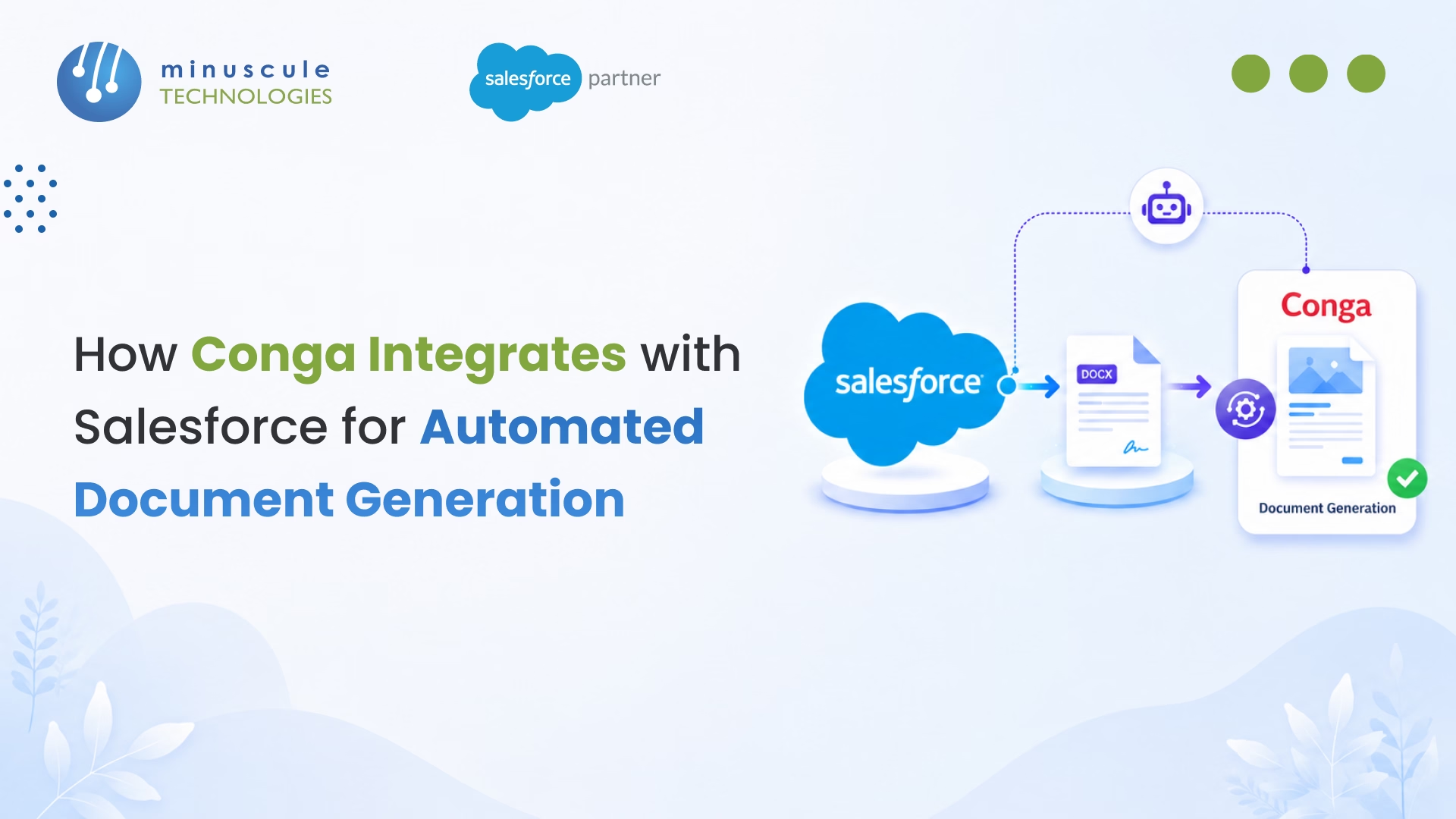
Conga Salesforce integration connects your Salesforce CRM data directly to automated document workflows — letting you generate proposals, contracts, invoices, and dozens of other document types without manual copy-pasting or formatting headaches. The integration works natively inside Salesforce through AppExchange-installed packages, pulling live record data into pre-built templates and delivering finished documents in seconds.
Here's what Conga enables inside Salesforce:
According to Conga's own benchmarks, organizations using their Salesforce integration cut document creation time by up to 80%. That's not a small improvement - it's the difference between spending 45 minutes on a proposal and finishing it in under 10.
If your team still builds documents by hand - copying data from Salesforce into Word templates, fixing formatting, chasing approvals through email - you already know how painful that process gets. It breaks down at volume. It introduces errors. And it slows deals.
This guide walks you through exactly how Conga works with Salesforce, from initial setup to advanced use cases. You'll get a practical, step-by-step breakdown that covers Conga Composer, Conga CLM, template design, integration architecture, and the most common pitfalls we've seen across dozens of enterprise deployments. Whether you're evaluating Conga for the first time or troubleshooting an existing setup, this post gives you the specifics.
Conga is a document automation and contract management platform built specifically for Salesforce-centric organizations. It started as a document generation tool (originally known as CongaMerge) and has since grown into a full suite covering everything from template-based doc creation to end-to-end contract lifecycle management.
The core idea is simple: your data already lives in Salesforce. Conga pulls that data into structured templates and produces polished, professional documents — automatically. No rekeying. No formatting gymnastics.
For Salesforce admins and revenue teams, this matters because document workflows are one of the last manual bottlenecks in most CRM processes. You can automate lead routing, opportunity stages, and approval chains inside Salesforce. But the moment someone needs to generate a proposal or a statement of work, the process often reverts to manual Word editing.
Conga closes that gap.
Conga isn't a single product. It's a family of tools that work together:
Not every org needs every product. Most start with Composer and add CLM or Sign as their needs grow.
Here's the reality: manual document creation doesn't just waste time. It creates risk.
A sales rep copies the wrong pricing into a proposal. A legal team sends out a contract with outdated terms. An operations manager generates an NDA with the wrong entity name. These aren't hypothetical scenarios — we've seen all of them. In our experience working on Salesforce integration projects, document errors are one of the top three reasons deals get delayed.
Automated document generation from Salesforce eliminates these issues at the source. The data comes straight from the record. The template enforces consistent formatting and language. And the output is generated in seconds, not hours.
The business case writes itself. Teams that automate document generation report:
Conga Composer is the engine behind most Conga document generation in Salesforce. Understanding how it works under the hood helps you design better templates, troubleshoot issues faster, and get more out of the integration.
At a high level, Composer does three things:
Let's break each piece down.
Templates are where the magic happens. You build them in Microsoft Word, Excel, or PowerPoint using special merge fields that map to Salesforce data.
A merge field looks like this in a Word template: {{AccountName}} or {{Opportunity.Amount}}. When Composer runs, it replaces each merge field with the actual value from the Salesforce record.
You can also use:
DiscountPercent > 0)Template design is part art, part science. In our experience helping clients with Salesforce consulting engagements, we've found that the best templates are the ones designed with the end user in mind — clean layout, clear hierarchy, and only the data that matters for that specific document type.
Once your template is ready, generating a document is straightforward. A user navigates to a Salesforce record - say, an Opportunity - and clicks a Conga Composer button. Composer runs the associated query, pulls the data, merges it into the template, and delivers the finished document.
The output can be:
You can also trigger Composer programmatically using Salesforce Flows, Apex triggers, or scheduled batch jobs. This is where things get powerful — imagine generating and sending renewal contracts automatically 90 days before expiration, with zero manual intervention.
Conga Composer supports a wide range of output formats:
You can even chain formats together. For example, generate a Word document, then automatically convert it to PDF before attaching it to the Salesforce record. This is a common pattern for contracts where you want an editable draft and a final signed copy.
Setting up Conga Composer in Salesforce isn't overly complex, but there are specific steps you need to follow in order. Here's the process we typically walk clients through.
Start by installing the Conga Composer managed package from the Salesforce AppExchange. You'll need System Administrator permissions in your Salesforce org.
During installation, you'll choose whether to install for all users or specific profiles. For initial setup and testing, we recommend installing for admins only, then expanding access once everything is configured.
After installation, you'll see new Conga-related objects and components in your Salesforce org, including Conga Solution records, Conga Email Templates, and Conga Batch configurations.
One thing to watch: make sure your Salesforce org's API limits can handle the additional API calls Conga will make. Each document generation event consumes API calls, and high-volume orgs can hit limits if they're not careful.
A "Conga Solution" is a configuration record that defines how a specific document generation workflow works. Each solution specifies:
You create Solution records in the Conga Solution object. Each Solution gets a unique URL that encodes all the parameters. This URL is what powers the Conga button on your Salesforce page layouts.
In our work across Salesforce managed services engagements, we've found that well-organized Solution records are critical for long-term maintainability. Name them clearly, document the query logic, and group them by department or use case.
Here's where you roll up your sleeves.
Open Microsoft Word (or Excel, or PowerPoint) and design your template. Insert Conga merge fields where you want dynamic data to appear. Conga provides a Template Builder tool that helps you discover available fields and construct merge field syntax.
A few tips from the field:
Upload your finished template to Salesforce Files or a Conga-connected content library, then link it to your Solution record.
Before rolling out to users, test thoroughly:
Once testing is complete, add the Conga button to the appropriate page layouts (or Lightning record pages) and train your users. A five-minute walkthrough goes a long way — most users pick up the workflow quickly once they see it in action.
For detailed technical guidance, the official Conga documentation is a solid reference.
Conga's flexibility means it gets used across nearly every department. Here are the most common use cases we encounter in real-world deployments.
This is Conga's bread and butter. Sales teams use Composer to generate:
What we've seen across projects in the technology and financial services industries: sales teams that adopt Conga for proposal generation typically cut their proposal turnaround time from 2–3 days to under an hour. That speed directly impacts win rates.
Finance teams use Conga document generation in Salesforce to produce:
The key advantage here is accuracy. When invoices pull data directly from Salesforce records, billing disputes caused by data entry errors drop dramatically.
HR departments - particularly those using Salesforce for recruiting or employee management - use Conga to generate:
One pattern that works well: combine Conga Composer with Conga Sign to generate and send an offer letter for electronic signature in a single automated workflow. The candidate receives a polished, pre-filled document and can sign it on their phone.
For legal teams, Conga CLM extends beyond basic document generation into full contract lifecycle management. This is where the Conga CLM Salesforce integration really shines.
CLM handles:
Legal teams in industries like healthcare, insurance, and manufacturing rely on CLM to maintain compliance and reduce contract cycle times. When CLM is connected to Salesforce, every contract is linked to the relevant Account, Opportunity, or custom object - so there's full visibility across the organization.
Conga isn't the only option for generating documents from Salesforce. Here's how it stacks up against the main alternatives:
The bottom line: Salesforce's native document generation works for simple use cases - basic PDF quotes, straightforward mail merge. But the moment you need multi-object queries, conditional template logic, bulk generation, or contract management, you'll outgrow it fast.
Conga's strength is its depth. It handles complex, multi-object, conditional document workflows that the other tools struggle with. The tradeoff is cost and complexity — Conga is a premium product with a learning curve. For organizations with serious document automation needs, though, the investment pays for itself quickly.
The Salesforce Ben platform has a helpful breakdown of document generation options if you want to dig deeper into the comparison.
No integration is without hiccups. Here are the issues we run into most often when working with Conga Composer in Salesforce — and how to fix them.
Merge errors are the most frequent support request. A field doesn't populate, a table doesn't render, or the document comes out blank.
Common causes and fixes:
Account.Name is not the same as Account.AccountName. Use Conga's field discovery tool to get the correct syntax.A solid debugging approach: generate the document with Conga's "log mode" enabled. This produces a detailed log showing exactly which fields were queried, what data was returned, and where the merge process failed.
Conga Batch — the bulk generation feature — is powerful but can strain your Salesforce org if not configured carefully.
Performance tips:
The Salesforce Developer Blog has useful resources on API limit management that apply directly to Conga batch processing scenarios.
Conga respects Salesforce's security model, but there are a few permission-related gotchas:
After years of implementing Conga integration with Salesforce across industries, here are the practices that consistently separate smooth deployments from painful ones.
1. Standardize your template naming convention from day one. Use a format like [Department]_[DocType]_[Version] — for example, Sales_Proposal_v3.2. When you have 50+ templates, naming discipline saves hours of searching and prevents the wrong template from being used.
2. Build a template library with version control. Store templates in a dedicated Salesforce content library with clear versioning. Never edit a live template directly — clone it, make changes, test, then swap it into the Solution record. This protects you from accidental breaks.
3. Create a "test" Conga Solution for every production Solution. Point the test version at a sandbox or test data set. This gives admins and template designers a safe place to iterate without affecting live users.
4. Document your SOQL queries. Conga queries can get complex — multiple joins, subqueries, filters. Add comments or maintain a separate document that explains what each query does and why. Future admins will thank you.
5. Use Conga's built-in logging for proactive monitoring. Don't wait for users to report issues. Set up regular checks of Conga error logs to catch template failures, permission issues, and performance degradation early.
6. Train power users in each department. Rather than routing every template change through IT or your Salesforce admin team, train one or two people per department to make basic template updates. This distributes the workload and speeds up turnaround.
7. Review and prune unused Solutions quarterly. Over time, organizations accumulate dozens of Conga Solutions that no one uses anymore. Unused Solutions clutter the interface and confuse users. Set a quarterly reminder to audit and archive stale configurations.
These aren't just theoretical recommendations. They come directly from what we've seen work and fail across our Salesforce consulting engagements.
Conga doesn't exist in isolation. Some of its most powerful capabilities come from combining it with other Salesforce features.
Salesforce Flows (and the now-retired Process Builder) can trigger Conga Composer actions automatically. This means you can:
The integration works through Conga's invocable Apex actions, which you can call from Flow. You pass in the record ID, Solution ID, and any additional parameters, and Conga handles the rest.
This is where Conga Salesforce integration moves from "useful tool" to "business-critical automation." When documents generate themselves based on process triggers, you remove human bottlenecks entirely.
For teams still working with Process Builder, note that Salesforce is retiring it in favor of Flow. If you have Conga automations built on Process Builder, plan your migration to Flow sooner rather than later. The Apex Hours community has excellent tutorials on Flow development that cover invocable action patterns.
Conga Composer pairs especially well with Salesforce CPQ (now part of Revenue Cloud). CPQ handles the pricing, product configuration, and quoting logic. Conga handles the document output.
The typical workflow:
Why not just use CPQ's built-in quote PDF? Because CPQ's native PDF output is limited in formatting flexibility. Conga gives you full control over layout, branding, conditional content, and multi-format output. For enterprise sales teams that need polished, customized proposals, the Conga + CPQ combination is hard to beat.
While Conga has its own e-signature product (Conga Sign), many organizations already use DocuSign. The good news: Conga Composer integrates with DocuSign through a direct connector.
The workflow looks like this:
This eliminates the manual step of downloading a document, uploading it to DocuSign, placing signature fields, and sending it out. The entire process - from data merge to signed contract - can happen in under a minute.
Conga Composer integrates with Salesforce through a managed package installed from the AppExchange. Once installed, it uses Salesforce APIs to query record data, merge it into document templates, and deliver finished documents as downloads, email attachments, or file attachments on Salesforce records. The integration is native - Composer runs inside Salesforce and respects the platform's security model, including object permissions, field-level security, and sharing rules.
Conga Composer is a document generation tool - it creates documents from templates and Salesforce data. Conga CLM (Contract Lifecycle Management) is a broader platform that manages the entire contract process: authoring, negotiation, approval, execution, and post-signature obligation tracking. Think of Composer as the tool that creates the contract document, and CLM as the system that manages that contract through its entire lifecycle. Many organizations use both together.
Conga's contract management (CLM) integrates with Salesforce by creating and managing contract records linked to standard and custom Salesforce objects like Accounts, Opportunities, and Contacts. Contracts are authored using clause libraries stored in Salesforce, routed through approval workflows built on Salesforce's native approval engine or custom Flow-based processes, and stored with full version history. The integration also enables automated alerts for key contract dates - renewals, expirations, and obligation milestones - directly within Salesforce.
No. Conga Composer is a paid product with per-user licensing. There is no permanent free tier. Conga does offer trial periods for evaluation, and pricing varies based on the number of users, the products included (Composer, CLM, Sign, etc.), and the contract term. Contact Conga directly or work with a Salesforce integration partner to get current pricing for your org size.
Yes. Conga Batch allows you to generate documents for multiple records in a single operation. You define the record set (using a Salesforce report, list view, or SOQL query), select the Conga Solution to apply, and run the batch. Conga processes each record individually, generating a separate document for each. Bulk generation is commonly used for monthly invoice runs, mass contract renewals, and compliance document distribution. For very large batches (5,000+ documents), schedule the job during off-peak hours to avoid API limit issues.
Getting Conga Salesforce integration right requires more than just installing a package. It takes smart template design, clean data architecture, well-structured queries, and a deployment plan that accounts for user training and ongoing maintenance.
That's where working with an experienced Salesforce engineering partner makes a real difference. At Minuscule Technologies, we've been building and optimizing Salesforce integrations since 2014. Our team of 160+ Salesforce experts has delivered 75+ projects globally - including document automation implementations across sales, legal, finance, and operations teams.
Whether you're starting fresh with Conga or fixing an existing setup that's not performing, we can help. From initial architecture through deployment and long-term managed services, we handle the technical details so your team can focus on the work that matters.
Get in touch for a free consultation and let's talk about what Conga can do for your Salesforce org.
You've seen what's possible. Now, let's make it happen for your business. Whether you need an end-to-end Salesforce solution, a complex integration, or ongoing managed services, our team is ready to deliver.

Schedule a Free Strategic Call


