
August 3, 2026
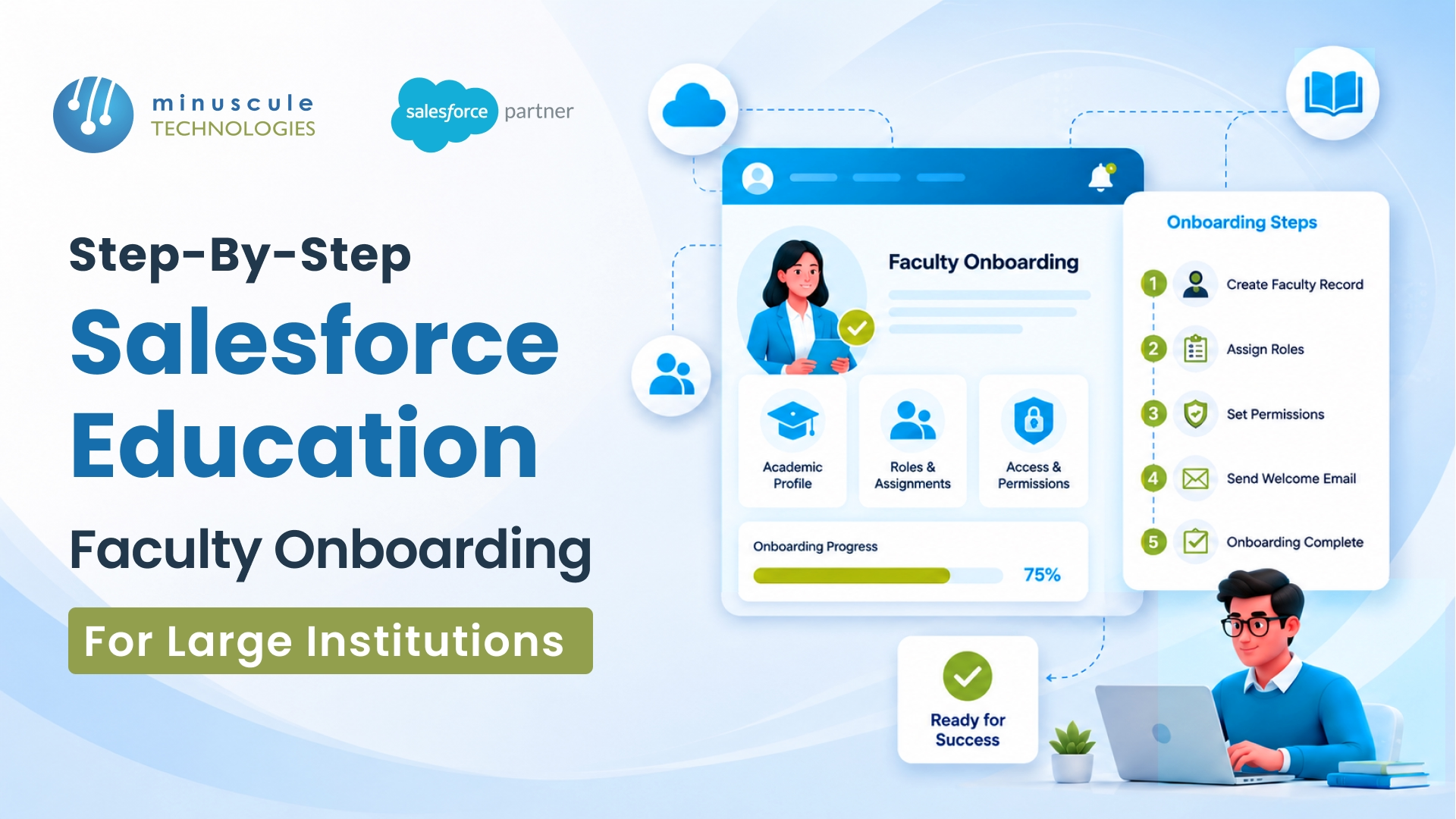
Salesforce Education Cloud faculty onboarding is the process of setting up, configuring, and automating how your institution brings new faculty members into the Salesforce platform - from account creation to department assignment, course linking, and ongoing access management. For universities managing thousands of instructors, adjuncts, and research staff, a structured onboarding process inside Salesforce eliminates the manual data entry, permission errors, and cross-system gaps that slow down every new hire's first 90 days.
Here's what a well-built faculty onboarding process in Salesforce gives you:
This guide walks you through the entire process - from configuring the Education Data Architecture (EDA) data model to building automation Flows, setting up permission hierarchies, and scaling for institutions with 10,000+ faculty.
Most Salesforce Education Cloud implementations focus on student recruitment, admissions, and alumni engagement. Faculty gets treated as an afterthought - a few contact records dumped into the system with minimal structure.
That's a problem for large institutions. A university with 5,000+ faculty members across dozens of departments has onboarding needs that look like student enrollment. Faculty records need to connect to HR systems, tenure-track workflows, course assignments, research grants, and compliance tracking. When these connections don't exist inside Salesforce, your teams end up maintaining parallel spreadsheets and siloed databases.
According to Salesforce's education industry research, institutions that automate staff onboarding reduce administrative processing time by up to 40%. But hitting that number requires a faculty-specific onboarding strategy built on top of the Education Data Architecture - not a generic HR process bolted onto a student-centric CRM.
If your institution already uses Education Cloud for student lifecycle management, you've got the foundation. What's missing is the faculty layer: the right data model extensions, automation flows, and integration points that make onboarding consistent and repeatable. Minuscule Technologies' education-focused Salesforce practice regularly helps universities build exactly this layer on top of existing Education Cloud deployments.
Before you configure anything, you need to understand how the Education Data Architecture (EDA) handles people's relationships.
EDA uses a specific pattern: every person (student, faculty, staff) is stored as a Contact record. Relationships between people and organizations are managed through Affiliations. This is different from standard Salesforce where Contacts belong to Accounts in a simple parent-child relationship.
Contact - The core faculty record. Stores personal details, employment status, and acts as the hub connecting all related data.
Account - In EDA, Accounts represent organizational units: the university itself, colleges, departments, programs, and administrative units. Each level gets its own Account with a Record Type (Academic Department, University Department, Educational Institution).
Affiliation - The junction object connecting a Contact to an Account. A single faculty member might have affiliations with the Computer Science Department (primary), the School of Engineering (secondary), and the University Research Committee. Each Affiliation includes a role, status, start date, and end date.
Course and Course Offering - Course is the catalog entry (e.g., CS 301 - Data Structures). Course Offering is a specific instance (CS 301 — Fall 2026, Section A). Faculty get linked to Course Offerings through Course Enrollment records with a "Faculty" role.
Facility - Represents physical or virtual spaces. Useful for office assignments during onboarding.
Before building your faculty onboarding process, confirm these items are in place:
Salesforce Edition and Licenses - Education Cloud runs on Enterprise Edition or higher. Faculty members who need login access require individual Salesforce licenses. For faculty who are record-only (no platform login), you can use the Contact object without consuming a license.
EDA Package Installed - Verify that the EDA managed package is installed and up to date. Check Setup → Installed Packages → Education Data Architecture. As of 2026, the current version includes updates for Affiliation mappings and improved Course Connection handling.
Account Hierarchy Built - Your organizational Account hierarchy should already reflect your institution's structure — institution → college → department → program. If it doesn't, build this first. Faculty onboarding breaks down fast if departments don't exist as Account records.
Record Types Configured - Ensure you have Record Types set up for Contact (Faculty, Staff, Student) and Account (Academic Department, University Department, Educational Institution, Household). These come pre-configured with EDA but may need customization.
Admin Permissions - You'll need System Administrator access or a custom permission set that includes the EDA Admin Permission Set Group.
Start by setting up the Contact record structure for faculty.
If you haven't already, create a dedicated Record Type on the Contact object called "Faculty." This lets you apply faculty-specific page layouts, validation rules, and automation triggers that don't affect student or staff records.
Go to Setup → Object Manager → Contact → Record Types → New. Name it "Faculty" and assign it to the appropriate profiles. Build a page layout that surfaces the fields faculty records need: employment start date, tenure status, department, office location, research area, and contract type (full-time, adjunct, visiting, emeritus).
Create a layout that groups fields logically: Personal Information → Employment Details → Department and Affiliations → Teaching Assignments → Onboarding Status. Add related lists for Affiliations, Course Enrollments, and Onboarding Tasks.
In our experience working with universities, a clean page layout makes a bigger difference than you'd expect. When HR staff can see an incoming faculty member's department, start date, onboarding status, and pending tasks on a single screen, fewer things fall through the cracks.
This step connects faculty to the right organizational units using EDA's Affiliation model.
Your Account hierarchy should follow a structure like this. At the top sits at your institution (e.g., Westfield University) with the "Educational Institution" Record Type. Below, sit at your colleges (e.g., College of Engineering, College of Arts and Sciences) using the "University Department" Record Type. Under each college, individual departments (e.g., Mechanical Engineering, Electrical Engineering, Computer Science) use the "Academic Department" Record Type.
Each department where faculty are hired needs to exist as an Account record with the "Academic Department" Record Type.
When a faculty member is onboarded, you'll create at least one Affiliation record linking their Contact to their primary department Account. For faculty with joint appointments, you'll create multiple Affiliations.
Don't create Affiliations manually for every new hire. In Step 4, you'll build a Flow that automatically generates the primary Affiliation when a faculty Contact is created with the right Record Type and department field populated.
Getting permissions right is especially important for large institutions where thousands of users access the same org. This is where Minuscule Technologies' Salesforce consulting team sees institutions struggle most - permissions that are too broad create data exposure risks, while permissions that are too narrow generate hundreds of support tickets.
Design a Faculty Permission Set Group
Create Permission Set Groups that bundle access levels by faculty type:
The Salesforce Role Hierarchy controls record visibility through roll-up. For education institutions, a typical structure places the University Provost at the top. Under the Provost sit the College Deans (e.g., Dean of Engineering, Dean of Arts and Sciences). Under each Dean sit the Department Chairs (e.g., Chair of Mechanical Engineering, Chair of Computer Science). Under each Department Chair sit the faculty members in that department.
This ensures a Department Chair sees all faculty records in their department; a dean sees all departments in their college, and the provost office has university-wide visibility.
Some faculty have joint appointments or serve on cross-college committees. Use Criteria-Based Sharing Rules to grant read access when a faculty member's Affiliation includes a secondary department. This avoids having to manually share records every time someone joins a committee.
This is where manual onboarding becomes a structured, trackable process. You'll use Salesforce Flow to automate task creation, notifications, and status updates.
Create a Record-Triggered Flow that fires when a new Contact is created with Record Type = "Faculty" and Onboarding Status = "Pending."
Action 1 - Auto-Create Primary Affiliation. Using the Department field on the Contact, create an Affiliation record linking the faculty member to their department Account. Set Role based on the Contract Type field, Status as "Current," and Primary as true.
Action 2 - Generate Onboarding Task List. Create Task records assigned to the appropriate people:
| Task | Assigned To | Due Date |
|---|---|---|
| Set up Salesforce login credentials | IT Help Desk | Hire Date minus 5 business days |
| Assign permission sets | Salesforce Admin | Hire Date minus 3 business days |
| Complete I-9 and tax forms | HR Onboarding Team | Hire Date |
| Assign office and key card | Facilities | Hire Date minus 2 business days |
| Set up email and LMS access | IT Department | Hire Date minus 3 business days |
| Schedule orientation session | Department Admin | Hire Date plus 1 day |
| Add to course roster | Registrar's Office | Hire Date plus 5 business days |
| Assign faculty mentor | Department Chair | Hire Date plus 7 business days |
Action 3 - Send Welcome Email. Trigger an email alert to the new faculty member with links to required forms, IT setup instructions, campus maps, and department contacts.
Action 4 - Notify Stakeholders. Send notifications to the Department Chair, HR, and IT when a new faculty onboarding kicks off. Include the faculty member's name, department, start date, and a link to their Contact record.
Action 5 - Update Onboarding Status. When all tasks are marked complete, a Scheduled Flow checks nightly and updates the Contact's Onboarding Status from "In Progress" to "Complete," then stamps the Onboarding Completed Date.
For a better user experience, create a Screen Flow that shows onboarding progress. Department admins can open this from the faculty's Contact record to see which tasks are done, which are overdue, and who's responsible for what. This cuts down on "where are we with the new hire?" emails dramatically.
Large institutions don't manually enter faculty data into Salesforce. They pull it from existing systems. The two critical integration points are your HRIS (Human Resources Information System) and your SIS (Student Information System).
Your HRIS is the system of records for employee data. The integration should:
Minuscule Technologies has delivered Salesforce integrations with PeopleSoft, SAP, and similar enterprise HR platforms for large organizations. The typical approach uses MuleSoft or a middleware layer to handle the data mapping and transformation between HRIS field structures and EDA's Contact/Affiliation model.
The SIS integration handles the academic side - course assignments, academic terms, and enrollment data. For faculty onboarding, the key data flows are:
For institutions running both integrations, the typical data flow works like this: a new hire event fires in your HRIS (Workday or Banner HR), which pushes the record through MuleSoft or your middleware layer. Middleware creates a Contact in Salesforce Education Cloud and triggers the onboarding Flow. Separately, your SIS (Banner or Colleague) syncs course assignment data into Salesforce, so the faculty member's teaching schedule appears on their record. Here is more on how MuleSoft integration supports employee onboarding.
The key principle: HRIS triggers the Contact creation. Salesforce handles the onboarding automation. SIS syncs academic assignments. No system duplicates another's job.
| HRIS Field | Salesforce Field | Notes |
|---|---|---|
| Employee ID | Faculty ID (Custom) | External ID for upsert |
| First Name / Last Name | Contact First/Last Name | Standard mapping |
| Department Code | Department (Custom Lookup) | Maps to Account record |
| Job Title | Title | May need picklist mapping |
| Employment Type | Contract Type (Custom) | Full-Time, Adjunct, etc. |
| Start Date | Hire Date / Expected Start Date | Drives onboarding timelines |
| Office Location | Office Assignment (Facility Lookup) | Optional |
| Manager Employee ID | Reports To (Contact Lookup) | For role hierarchy |
Once your onboarding process is running, stakeholders need visibility into what is happening. Build these reports and dashboards:
Onboarding Pipeline Report - Shows all faculty with Onboarding Status = "Pending" or "In Progress," grouped by department and sorted by Expected Start Date. This is the daily working report for HR and department admins.
Overdue Task Report - Filters Tasks where Status is not Complete and Due Date is before today. Grouped by Assigned To, each team sees their backlog.
Time-to-Onboard Report - Calculates the average days between Contact Created Date and Onboarding Completed Date. Break this down by department and Contract Type. Over time, you'll spot which departments are slow and investigate why.
Faculty Headcount by Department - Aggregates active Affiliations grouped by department Account. This doubles as a staffing report for Deans and the Provost office.
Build a Lightning Dashboard with these components:
| Dashboard Component | Chart Type | What It Shows |
|---|---|---|
| Faculty onboarded this month | KPI / Gauge | Current count vs. target |
| Average onboarding completion time | Trending Line Chart | Week-over-week trends |
| Overdue onboarding tasks by department | Bar Chart | Bottleneck identification |
| Faculty headcount by college | Donut Chart | Distribution overview |
| Upcoming start dates (next 30 days) | Table / List View | Planning ahead |
Place this dashboard on the Home page for HR leadership and make it the default for users in the HR and Admin roles.
Don't push a faculty onboarding process into production without testing. Here's a step-by-step validation approach.
Test record variety. Create five test Contact records with different combinations: full-time tenured, adjunct, visiting researcher, department chair, and joint appointment. Verify that each triggers the correct onboarding Flow, generates the right tasks, and creates proper Affiliations.
Test permission sets. Log in as each faculty type. Confirm full-time faculty can access their records and courses, but not other departments. Confirm adjuncts see only their assigned courses. Confirm department chairs see their department's faculty.
Simulate HRIS integration. Push test records through your middleware layer. Verify that Contact creation, field mapping, and Flow triggering all work end-to-end.
Test edge cases. What happens when a faculty member transfers to departments? When does an adjunct become full-time? When does someone go on sabbatical? Each scenario should have a clear data flow.
Involve real users from HR, IT, Department Admin, and at least one faculty member. Give them specific scenarios to walk through and collect feedback on page layouts, task clarity, and notification frequency.
For the first 30 days, monitor daily. Check the Overdue Task Report every morning. Watch for Flow Errors in Setup → Flow Errors. Track the Time-to-Onboard metric weekly and compare against your pre-Salesforce baseline.
What we've seen across multiple university implementations is that the first two weeks surface 80% of the edge cases your testing missed. Having a dedicated managed services team during this period means issues get fixed in hours instead of piling up.
EDA is a free, open-source data model built on the Salesforce platform specifically for educational institutions. It provides a pre-built set of objects, fields, and relationships for managing people (students, faculty, staff), organizational units (departments, colleges), academic programs, courses, and affiliations. You install it as a managed package from the Salesforce AppExchange.
For a mid-size university (1,000 to 5,000 faculty), plan for 8 to 12 weeks from kickoff to go-live. That breaks down roughly into 2 weeks for requirements and EDA configuration, 3 weeks for Flow development and permission setup, 2 weeks for HRIS integration, 2 weeks for testing, and 1 to 2 weeks for training and go-live support. Larger institutions with complex multi-campus structures or heavy customization may need 16 to 20 weeks.
Yes. The Record-Triggered Flow should check the Contract Type field and branch accordingly. Adjunct faculty may skip certain tasks (office assignment, tenure-track forms) and receive a streamlined permission set with access limited to their assigned courses. You can create separate task templates for each contract type.
It does. Many institutions create a Faculty Portal using Experience Cloud where faculty can view their onboarding checklist, update personal information, access course rosters, and submit forms - all without needing a full Salesforce license. This is especially cost-effective for adjunct faculty who don't need access to the full CRM interface.
While FERPA primarily protects student records, faculty data still requires protection under institutional policies and state employment laws. Use field-level security to restrict sensitive fields (salary, performance reviews, medical accommodations) to HR users only. Enable audit trails on the Contact object to track who viewed or changed faculty records. Your permission set design from Step 3 directly supports this.
Create a new Affiliation record for the new department (Status: Current, Primary: True) and update the existing Affiliation (Status: Former, Primary: False, End Date: transfer date). If the transfer changes their permission needs, update the permission set assignment. A Flow can automate this when the primary department field on the Contact changes.
Salesforce Education Cloud pricing varies by institution size and edition. The EDA package is free. The primary costs are Salesforce licenses for faculty who need platform access (which varies by edition - contact Salesforce for education pricing), implementation services (typically $50K to $200K depending on scope and complexity), and any middleware licenses for HRIS/SIS integration (MuleSoft, Informatica, or similar). Many institutions phase the rollout - starting with HR and department admins, then extending portal access to faculty in a second phase.
Getting faculty onboarding right in Salesforce Education Cloud isn't just an IT project - it affects how quickly new hires become productive, how accurately your institution tracks its people, and how much time HR and department admins spend on manual processes versus strategic work.
The step-by-step process in this guide gives you a clear path from EDA configuration through automation, integration, and scaling. But every institution's data, systems, and workflows are different. What works for a 2,000-faculty liberal arts university won't be identical to a 15,000-faculty research institution with satellite campuses and medical schools.
The Minuscule Technologies Salesforce consulting team works with higher education institutions to design, build, and optimize Education Cloud implementations - including faculty onboarding processes built for your specific institutional structure. If you're planning a faculty onboarding project or looking to improve an existing process, reach out for a conversation about what your institution needs.
You've seen what's possible. Now, let's make it happen for your business. Whether you need an end-to-end Salesforce solution, a complex integration, or ongoing managed services, our team is ready to deliver.

Schedule a Free Strategic Call


Plot No. 4, Sridevi Amman Street, Perumal Nagar Extension, Old Pallavaram, Chennai, Tamil Nadu 600117, India.
