We are at Dreamforce 2026, Industry Pavilion at San Francisco


January 27, 2026
Think of a high-security bank vault. Strict rules. Automatic alarms. Everything built to keep the contents safe. That's exactly how Salesforce Service Cloud treats your data. Under normal use, those rules are perfect. They stop bad data at the door.
But a migration changes the picture. You're moving thousands of old records from a previous system. Force them through the Migration Wizard without prep, and Salesforce treats your own data like an intruder. It blocks records. It fires "Case Created" emails to customers from five years ago. It creates errors you'll spend weeks fixing.
The fix: temporarily unlock the doors and tell the alarms to stand down. This guide shows you exactly how - step by step.
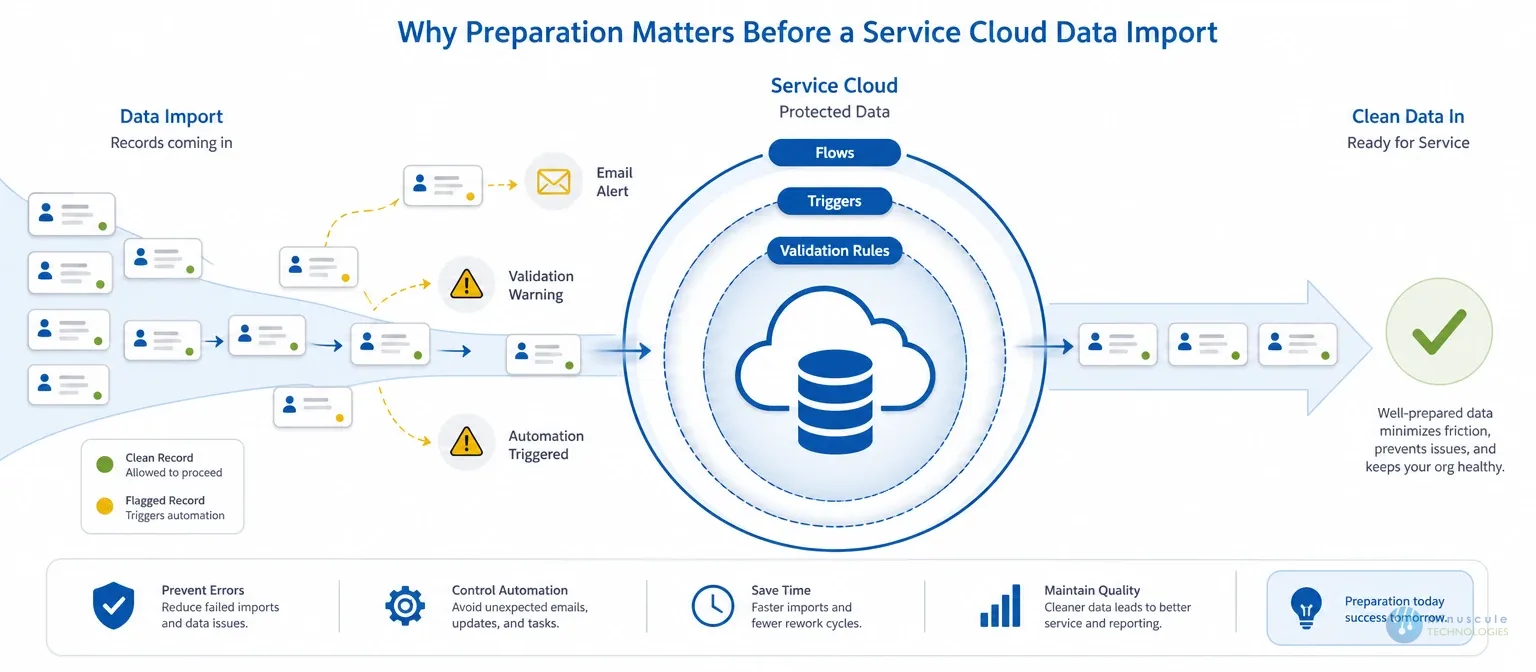
Service Cloud runs on layers of automation. Flows, triggers, and validation rules all fire on every record save. That's great for daily use. During an import, it's chaos. Each incoming record can set off emails, assignments, and custom code meant for live work - not historical data.
Prep takes an hour. Skipping can cost weeks of cleanup. Here's the full sequence.
Before you sign in to the migration tool, create all needed users in Service Cloud. This ensures tickets and records land with the right agents during the import.
The account that connects to the Migration Wizard needs full authority over the org. In practice, that means the Modify All Data permission, which bypasses standard sharing rules.
Confirm the login you'll use for the Migration Wizard sits on the profile you just checked. Try to data migrate with a Standard User account, and the import will likely fail on missing privileges.
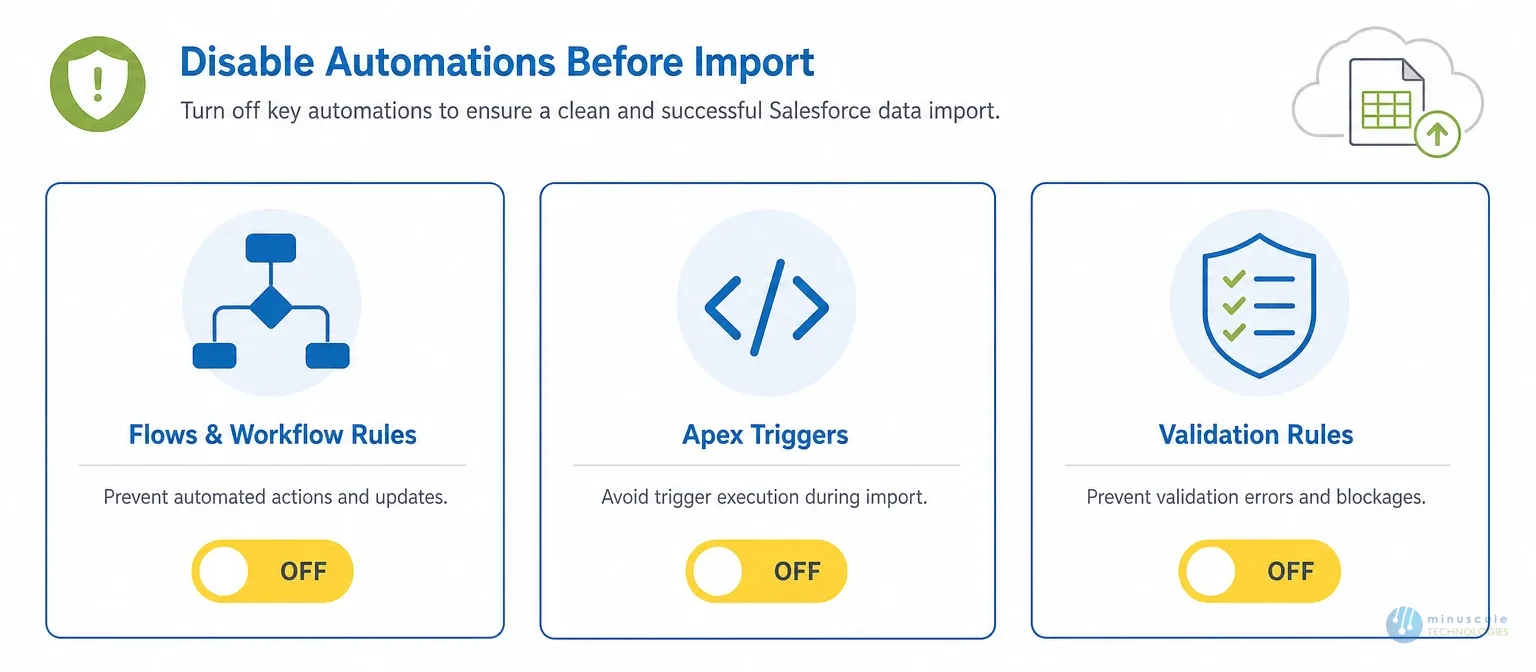
This is where most imports go wrong. To prevent data conflicts, ghost emails, and record errors, you must switch off three types of rules first:
| Automation | Where to Disable | Why It Breaks Imports |
|---|---|---|
| Flows & Workflow Rules | Setup → Process Automation → Flows | Fires "Case Created" emails to old customers |
| Apex Triggers | Setup → Custom Code → Apex Triggers | Custom code rewrites your historical data on save |
| Validation Rules | Setup → Object Manager → [Object] → Validation Rules | Messy old data fails strict checks and gets rejected |
Flows and Workflow Rules. Deactivate any Record-Triggered Flows tied to Cases, Accounts, or Contacts. Then run a legacy check: open Workflow Rules and disable any active ones, if your org still uses them.
Apex Triggers. These run backend code on every save. Click Edit next to each trigger you need to pause (CaseTrigger, for example). Uncheck the Is Active box. Save.
Validation Rules. These enforce data quality — "phone number must be 10 digits," for instance. Historical data is often messy and will fail these checks. Open each rule, uncheck Active, and save. Repeat for Accounts, Cases, and Contacts.
With users created, permissions set, and automations off, you're ready to connect.
After the Import: Reactivate and Verify
The import isn't done when the last record lands. Two steps remain — and teams forget them at their peril:
It's a guided import tool for moving help desk data — cases, contacts, accounts — into Salesforce Service Cloud from a previous system. It handles the transfer. But your org must be prepped first, as this guide shows.
Yes. Record-Triggered Flows fire on every incoming record. Skip this step and Salesforce may email "Case Created" alerts to customers whose tickets closed years ago.
Always. A sandbox run surfaces mapping errors, permission gaps, and automation conflicts before they touch production. Check the sandbox option on the Migration Wizard's connection screen.
The import itself often runs in hours. The full job — prep, sandbox test, production load, and verification — usually takes one to three weeks. Record volume and data quality drive the range.
A clean move into Service Cloud needs a sterile environment. Configure users with matching emails. Grant Modify All Data. Switch off Flows, triggers, and validation rules. Run the import. Then reactivate everything and verify the results.
Don't risk data integrity on a DIY transfer. At Minuscule Technologies, we specialize in data migration and harmonization — engineering clean, AI-ready foundations for your business. For the wider playbook, see our complete Salesforce data migration guide. Contact us for a free consultation before your next import.
You've seen what's possible. Now, let's make it happen for your business. Whether you need an end-to-end Salesforce solution, a complex integration, or ongoing managed services, our team is ready to deliver.

Schedule a Free Strategic Call


